Apple has today launched its new Data and Privacy website, allowing Apple users to download everything that Apple personally associates with your account, from Apple ID info, App Store activity, AppleCare history to data stored in iCloud like photos and documents. This is currently only available in European Union, Iceland, Liechtenstein, Norway, and Switzerland to comply with GDPR, but will roll out worldwide in the coming months.
The new online tools allow customers to get a copy of all data associated with an Apple ID. You can request account details and sign-in records and data such as contacts, calendars, notes, bookmarks, reminders, photos and documents. Apple also stores info like app usage statistics for Apple Music and Game Center, a purchase history of items bought from the App Store and iTunes Store, AppleCare support history and marketing records.
Only data that is personally identifiable can be found here. This can all be downloaded with a few simple clicks on the privacy portal. To obtain a copy of your data:
1. Log in to privacy.apple.com.
2. Select the "Get started" link under the "Get a copy of your data" heading.
3. Tick the boxes of the categories of data you want to download (iCloud Photos, Mail and Drive are separated into a separate list as this data may be exceptionally large).
4. Press Continue.
5. Select what is your preferred maximum file size (Apple will split up the data into chunks, up to a maximum of 25 GB) and press Continue.
Your data request is now in progress. Data like iCloud Photos will take a long time to generate as there are potentially tens of gigabytes of files. It can take up to a week to prepare the downloads. Apple notifies you when the data is ready to download, and it is automatically deleted after 2 weeks.
Apple says it provides all data in standards-compatible formats. This means it can be used as a way to move all your data to a new cloud service, as well as transparently showing customers what data Apple keeps on you.
Whilst these features will roll out later in the year for other regions, all customers can request data corrections, deactivate or delete their account. You can do this by following the links on the main page.
Deactivation means that Apple will stop processing any data relating to your Apple ID. You will not be able to access any store purchases from iTunes, iBooks or the App Store. You will not be able to access any iCloud data, or use iCloud services like FaceTime or iMessage (see here for more conditions about account deactivation). You are literally cutting yourself off from the Apple connected world. Apple will verify all deactivation requests to prevent abuse. Apple doesn’t delete your info, it just stops anyone - including Apple - from accessing it whilst the account is deactivated. You can re-enable the account by logging back in to the privacy portal and choosing to reactivate it.
Permanent deletion takes this one step further, essentially asking Apple to remove all data they have stored on you - forever. This process is not reversible once initiated.
The Finder's Go > "Go to Folder..." (Shift-Command-G) menu item is a nifty way to access your file system.
First of all, you can use it to see hidden folders, so if you need to view /private/var, you don't have to open a Terminal window to do so.
Secondly, the "Go to Folder" window is an excellent place to paste a path rather than clicking around to get to a deeply nested folder. I use this pretty often when I'm troubleshooting. After all, if Apple's support documentation tells you to open ~/Library/Mail/V2/MailData to access a file within it, it's very quick to just copy that path and paste it into the window.
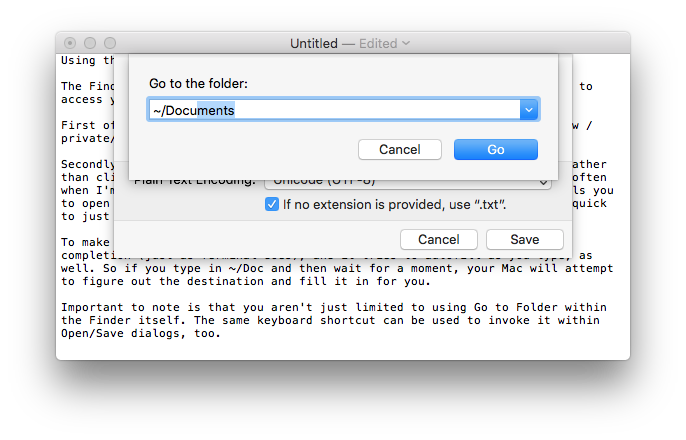
To make typing stuff in even faster, the "Go to Folder" window allows tab completion (just as Terminal does), and it tries to autofill as you type, as well. So if you type in ~/Doc and then wait for a moment, your Mac will attempt to figure out the destination and fill it in for you.
Important to note is that you aren't just limited to using "Go to Folder" within the Finder itself. The same keyboard shortcut can be used to invoke it within Open/Save dialogs, too.
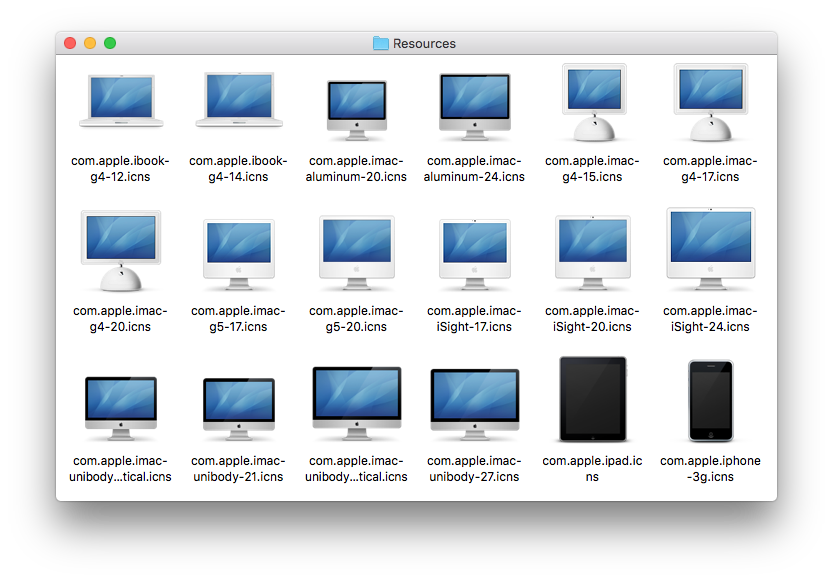
A large collection of high resolution Apple hardware icons is bundled right in macOS, including great icons for nearly all vaguely recent Mac models, iPad, iPhone, iPod, Apple TV, iMac, Mac Mini, Mac Pro, and much more, going all the way back to the G4 series.
To access the hidden hardware icon pack:
• From the Finder's Go menu choose "Go to Folder" and enter the following path:
/System/Library/CoreServices/CoreTypes.bundle/Contents/Resources/
• Scroll down until you start finding .icns files named “com.apple” followed by the hardware name
Many of these icons are what you find when using network sharing with a computer they match, but they also make for an excellent way to dress up your matching Mac, for example by replacing the generic Macintosh HD icon or anything else.
Many people equate productivity with screen size and assume it's difficult to get much work done on a small screen. Here are four ways to maximize productivity on small Mac laptop screens.
Hide inactive apps. Use Command+Option+H to hide all applications and windows except for the active app, also you can Option+Click out of a specific app to hide it as you begin working elsewhere. Hidden apps are easy to identify if you use Cocktail to enable transparent icons for hidden applications in the Dock (Interface > Dock).
Auto-hide the Dock. Hit Command+Option+D to enable auto-hiding of the Dock, summon it when needed by swiping to the bottom of the screen with the cursor. Dock is a great app launcher but keep it hidden when not in use.
Use full screen apps. Full screen apps help you stay focused and make the most of small screens. This feature was designed with Mac laptops in mind, so don’t forget to use it.
Use virtual desktops. Create new desktops through Mission Control by hovering over the right corner and clicking the + button. Use this with full screen apps to create a great desktop workflow that can be quickly swiped between.
In the old days you could reset a login password via a Mac's OS X installer disc. But with no such discs, what to do?
To reset a login password in OS X Mountain Lion or later, restart the Mac and hold down Command-R to boot into the Recovery HD partition. From the Utilities menu, choose Terminal to open it. In Terminal type:
resetpassword
and press Return.
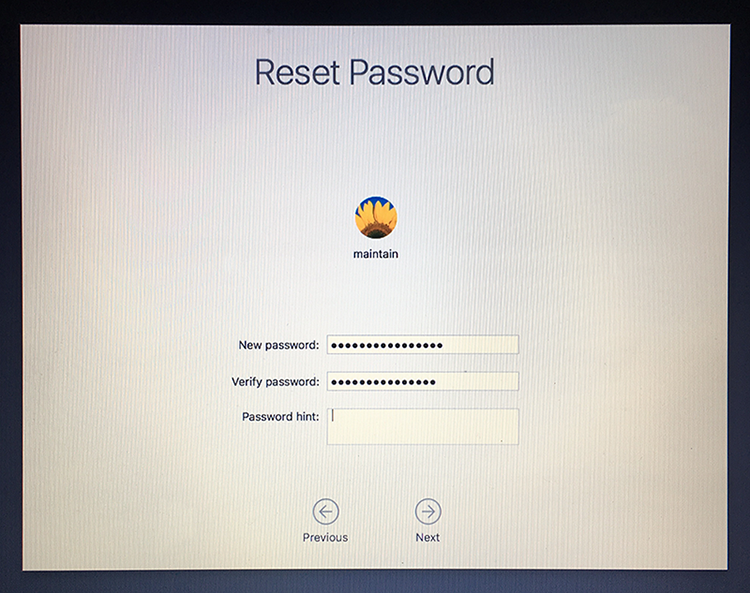
In macOS Sierra and macOS High Sierra, an Reset Password assistant will launch. Choose the user account or admin account you want to reset the password for. Enter a new password, confirm the new password, set (if you like) a password hint and then click on "Next" to set the new password for the account in question. Choose to "Restart" the Mac and when the Mac boots up, use the newly reset password to login to the computer.
In OS X Mountain Lion, OS X Mavericks, OS X Yosemite and OS X El Capitan, a Reset Password window will appear that will list all the bootable volumes attached to your Mac. Select the volume that contains the account you want to reset and choose the user name that needs its password reset. Enter and verify a new passwords in the appropriate fields and, if you like, enter a password hint. Click Save and the new password is applied to the account.