Cocktail is a general purpose utility for macOS that lets you clean, repair and optimize your Mac. It is a powerful digital toolset that helps hundreds of thousands of Mac users around the world get the most out of their computers every day.

Get Cocktail here

Prepare your Mac for sale

When you get ready to sell or give away your Mac, there are some steps you should take. You'll want to back up your computer, disable some features and services, and erase the hard drive.

Moving to a new Mac? Learn how to move your files to your new Mac. Do this before you erase the hard drive or follow any other steps. 

• Create a backup. Be sure you have an up-to-date backup of your important files and data. Learn how to back up your data in OS X.

• Sign out of iTunes. Open iTunes. From the menu bar at the top of your computer screen or at the top of the iTunes window, choose Account > Authorizations > Deauthorize This Computer. When prompted, enter your Apple ID and password. Then click Deauthorize. Learn more about deauthorizing your computer using iTunes, including how to deauthorize all the computers you've used with your iTunes account.

• Sign out of iCloud. If you use Find My Mac or other iCloud features on your Mac, you should first archive or make copies of your iCloud data. After that, choose Apple Menu > System Preferences, click iCloud, and then deselect the Find My Mac checkbox. Finally, sign out of iCloud. In System Preferences, click iCloud, and then click the Sign Out button. When you sign out of iCloud, you're asked whether you want to remove iCloud data from your Mac. Your iCloud data will remain on any other devices that are using the same Apple ID.

• Sign out of iMessage. If you're using OS X Mountain Lion or later, sign out of iMessage. In the Messages app, choose Preferences > Accounts. Select your iMessage account, then click Sign Out.

• Erase and reinstall OS X. To reformat your hard drive and reinstall OS X, follow these instructions. After you reformat your hard drive and reinstall OS X, the computer restarts to a Welcome screen and asks you to choose a country or region. If you want to leave the Mac in an out-of-box state, don't continue with the setup of your system. Instead, press Command-Q to shut down the Mac. When the new owner turns on the Mac, the Setup Assistant will guide them through the setup process.
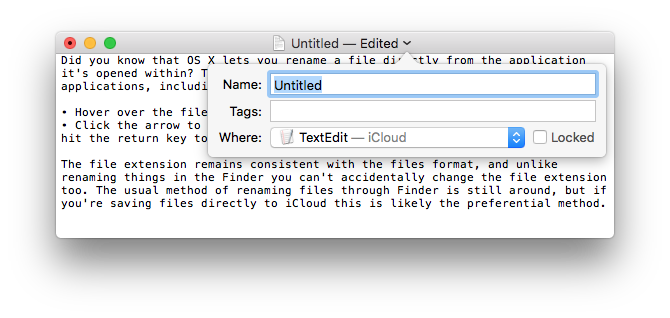
Rename a file from an applications title bar

Did you know that OS X lets you rename a file directly from the application it's opened within? This feature is supported in most bundled Apple applications, including TextEdit, Pages, Preview, and others.

• Hover over the title bar
• Click the filename to pull down a menu, enter the new name and hit the return key to save the files name change

The file extension remains consistent with the files format, and unlike renaming things in the Finder you can't accidentally change the file extension too. The usual method of renaming files through Finder is still around, but if you're saving files directly to iCloud this is likely the preferential method.

Useful keyboard shortcuts

Two of our most commonly used Safari shortcuts are Command+Down Arrow and Command+Up Arrow. What do these shortcuts do?

The first scrolls you all the way to the bottom of the page you're on; the second puts you at the top. So if you need to move in either direction, you don't have to actually scroll at all. For those of you who use Chrome or Firefox, this works in those programs, too.

This little shortcut is good to remember, as you can use it in other places around the Mac. In document-creation apps (like Pages or TextEdit), those shortcuts mean "jump to the beginning or the end of the text". So you don't have to scroll in those programs, either.

Finally, if you add Shift to those shortcuts, it means "select all the text between where my cursor is and the beginning/end". So if you place your cursor in the middle of a document (or select some text on a webpage), Shift-Command–Up Arrow will select everything between your cursor and the beginning of the document; Shift-Command–Down Arrow will select things between there and the end. We use this as an alternative to click-and-drag to select text, and it's more controlled than Select All.

Character swap

How many times have you typed something to discover the last two characters are in the wrong order? You know, when “the” turns into “teh” and “because” into “becuase”, a fairly common general mistype.

Apparently it happens often enough for there to be an individual keyboard shortcut to instantly swap the last two typed characters, and that keyboard shortcut is Control+T.