Your Mac stores certain settings in a special memory area even if it is turned off. On Intel-based Macs, this is stored in memory known as NVRAM, on PowerPC-based Macs, this is stored in memory known as PRAM. Information stored in NVRAM or PRAM may include speaker volume, screen resolution and startup disk selection. You may need to reset the NVRAM or PRAM if you experience issues related to these functions.
For example, if your Mac starts up from a startup disk other than the one you've specified in Startup Disk preferences, or if a "question mark" icon appears briefly when your Mac starts up, resetting NVRAM or PRAM may help.
• Shut down the computer.
• Locate the following keys on the keyboard: Command, Option (Alt), P and R.
• Turn on the computer.
• Press and hold the Command-Option-P-R keys (you must press this key combination before the gray screen appears).
• Hold the keys down until the computer restarts and you hear the startup sound for the second time, then release the keys.
After resetting NVRAM or PRAM you may need to reconfigure your settings for speaker volume, screen resolution, startup disk selection, time zone information. If issues persist, your Mac's logic board battery (not a portable Mac's rechargeable battery) may need to be replaced. The logic board battery helps retain NVRAM/PRAM settings when your computer is shut down. You can take your Mac to a Mac Genius or Apple Authorized Service Provider to replace the battery on the logic board.
In some situations, you may need to reset your computer's System Management Controller (SMC). Learn how to identify these conditions and reset the SMC.
Apple’s Mail application is one of the best email clients around for OS X. Why is it so good? Well, it is free, comes with every Mac and supports almost all types of email accounts! That said, it can always be improved a little. In particular you might notice that it slows down over time, especially if you have large mailboxes and lots of contacts so let’s have a look at how we can speed it up a bit.
The first, and most obvious thing, is to slim down your mailboxes a bit. Create a new folder in Mail and move all your old emails into that folder (or use the Archive function if you have a Gmail account. This way Mail only has to load the most recent emails when it launches and instead of having to synchronise a list of over 20 000 emails with the server it only has to deal with 500 or so, saving your precious bandwidth if you are on a mobile connection.
It is also a good idea to rebuild Mail’s Envelope Index now and then. Mail application uses the (SQLite) Envelope Index database to index and search messages. By rebuilding this database, issues concerning messages that appear incomplete or are missing can be corrected. This feature may also improve Mail's performance. Just launch Cocktail, go to System > Databases and click on the Rebuild button.
You can also use Cocktail to clear Mail downloads. When you receive attachments to e-mail messages, the files are stored with your messages at first. But if you double-click an attachment to view it, Mail stores a copy in a folder on your hard drive. You may have dozens of files there occupying a huge amount of space. You can generally delete these without worry. If you still have the original messages, the attachments are part of those messages. All you have to do is to make sure that the “Mail downloads” option in Cocktail > Preferences > Caches > Internet is enabled next time you use Cocktail to clear Internet caches.
Another housekeeping tip is to clean your previous recipients list. Mail stores a list of everyone you’ve ever sent a message to so that it can suggest their email addresses when you are writing a new email. The problem is that many of these recipients are people you only emailed once, or addresses which have changed so the list can become full of out of date and irrelevant addresses. Select Previous Recipients from the Window menu in Mail to clean up the list.
Finally, if you are using Mail to read RSS feeds it might be a good idea to go through your subscriptions and deleting the ones you no longer read as Mail essentially treats an RSS subscription as a mailbox. This means that as the number of posts increases Mail will slow down, so keep an eye on your feeds!
How many times have you typed something to discover the last two characters are in the wrong order? You know, when “the” turns into “teh” and “because” into “becuase”, a fairly common general mistype.
Apparently it happens often enough for there to be an individual keyboard shortcut to instantly swap the last two typed characters, and that keyboard shortcut is Control+T.
While it may seem like a minor thing it can actually have a big impact on how fast and responsive applications are. For example, every time Adobe Photoshop, Microsoft Word or QuarkXPress starts, the application scans your fonts and builds a preview for you. After this, every time you want to change the font the application has to load these previews and display them to you, which in Microsoft Word can takes up to five seconds from the clicking the font menu until it actually displays the font list.
By disabling unnecessary fonts you can speed up applications quite significantly. As an example a quick scan of this computer shows that there are over 450 fonts installed, but typically only 20-30 are ever used. By disabling some of the extra fonts we can reduce the time applications have to spend on managing fonts.
So how do you disable fonts? You can use the application Font Book that comes with your Mac (you find it in Applications). Give it a few seconds to load your fonts then go through the list and disable the ones you don’t use by selecting Disable from the Edit menu. Damaged or duplicate fonts can also slow down your computer so while you are in Font Book select Validate Fonts from the File menu and verify that the fonts you have installed are okay. You can automatically disable duplicates by using the Look for Enabled Duplicates (or Select duplicate fonts on Snow Leopard), followed by Resolve Automatically option (or Resolve Duplicates option in the Edit menu on Snow Leopard). It is also a good idea to enable Automatic font activation in Font Book’s Preferences as it lets OS X re-enable fonts when an application needs it.
It is worth noting that the font caches themselves can become corrupted and cause slowdowns or crashes on your Mac so if you experience problems because of this it is a good idea to force OS X to rebuild the font cache. Cocktail makes this easy: open Cocktail and go to Preferences > Caches > User and select Font Caches. Next time you clear the caches Cocktail will make clear out the font caches too and force OS X to rebuild them.
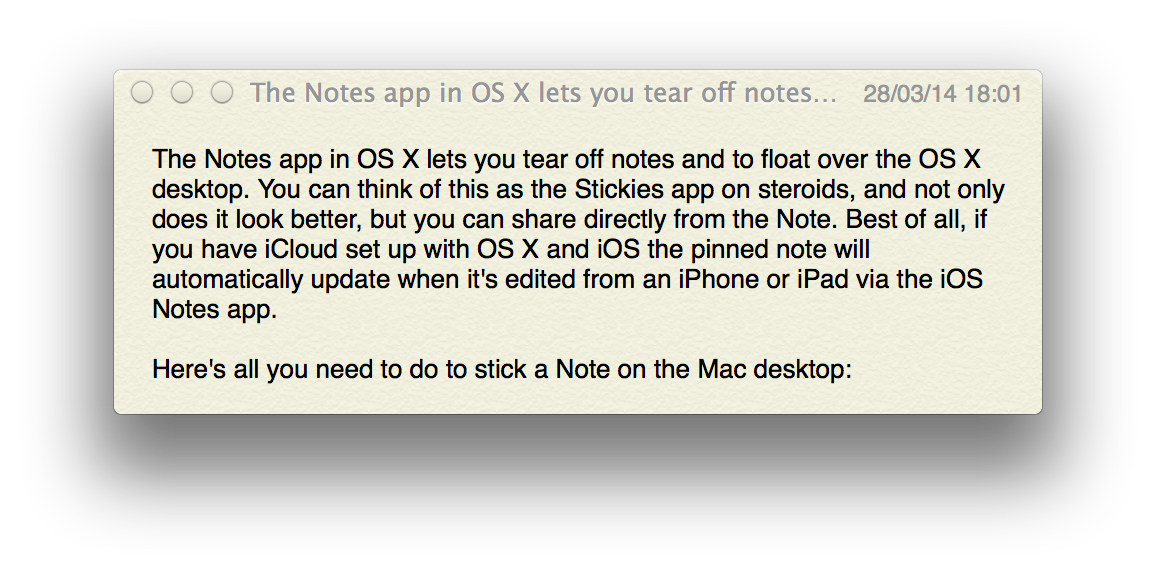
The Notes app in OS X lets you tear off notes and to float over the OS X desktop. You can think of this as the Stickies app on steroids, and not only does it look better, but you can share directly from the Note. Best of all, if you have iCloud set up with OS X and iOS the pinned note will automatically update when it's edited from an iPhone or iPad via the iOS Notes app.
Here's all you need to do to stick a Note on the Mac desktop:
• Launch Notes app in OS X and double-click the Note you want to tear off
• Position the floating note on the desktop and then close the primary Notes app window
Super simple to get the Note onto the desktop, but now for best part:
• Grab an iPad, iPod touch or iPhone and launch Notes app
• Locate and edit the same note, it will automatically sync and update on the OS X desktop