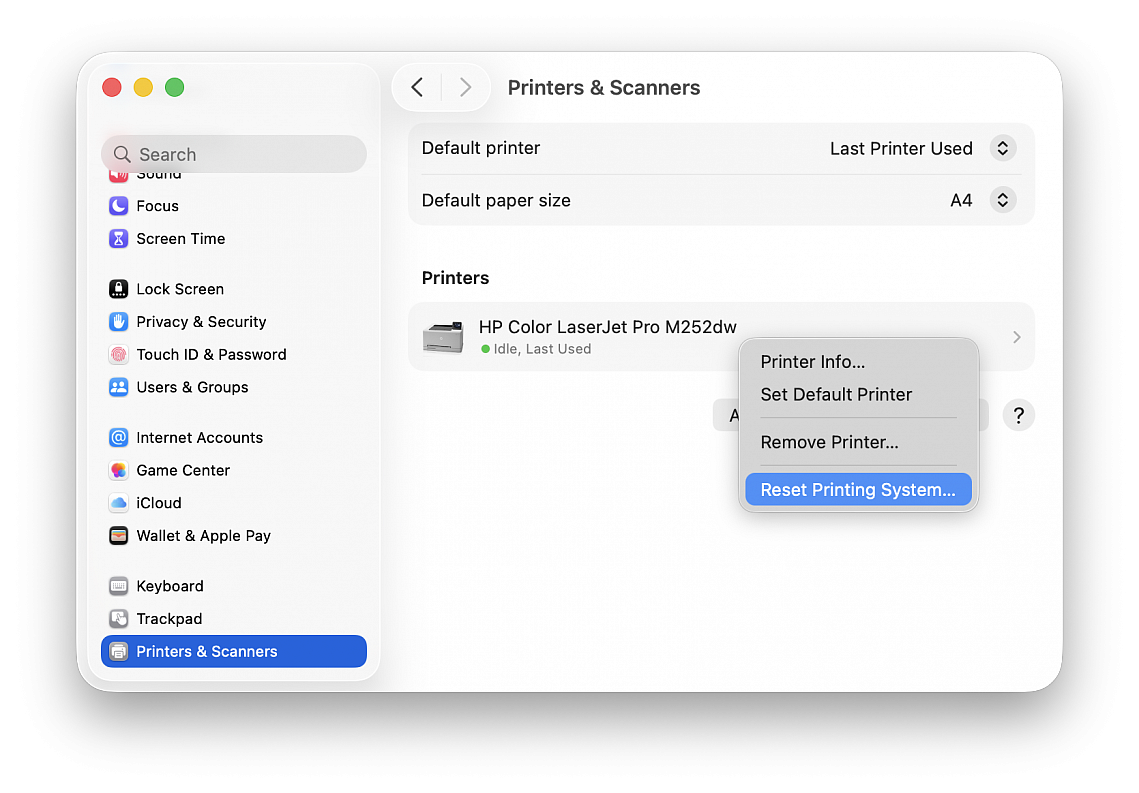
How to reset the printing system
Posted in
If you're having printing issues, there are lots of troubleshooting steps to try. You should check the printer's network connection and perhaps search for any new drivers your model has available. Another good idea is turning the device off and on again to see if the problem's just an intermittent one. You could even delete the printer from System Settings > Printers & Scanners and reconfigure it. There is, however, a troubleshooting step that you can attempt if nothing else seems to work - resetting your entire printing system.
This can be especially helpful if you're pretty certain that your Mac's the problem, not the printer (if your other computers can print just fine). You'll want to use this only as a last resort, though, because you'll have to set up all of your printers and scanners again.
Here's how you do it:
• Open "System Settings..." from the Apple menu
• Go to "Printers & Scanners"
• Right or Control click on any listed printer
• Choose "Reset Printing System..." and click "Reset"
• Wait for your Mac to complete the task and after it's finished, click the "Add Printer, Scanner, or Fax..." button to add back your printer(s)