Cocktail is a general purpose utility for macOS that lets you clean, repair and optimize your Mac. It is a powerful digital toolset that helps hundreds of thousands of Mac users around the world get the most out of their computers every day.

Get Cocktail here

Set up a shared network Time Machine folder to back up multiple Macs

Want to find a solution to back up multiple Macs in your home or office without buying dedicated hardware like network-attached storage, paying for a backup service, or needing multiple external drives? You can set up a shared network folder on Mac to allow other machines to save their Time Machine backups.

The handy feature to set up a shared network folder for backups with macOS is like a built-in virtual NAS. Keep in mind, you’ll want to make sure the Mac you’re setting up the shared folder on has enough storage to handle backups from Macs you’ll be using it with. You can also limit backups to a specific size. And don’t forget to regularly back up the Mac you’re using as the shared folder host with an external drive or other option.

Set up a shared Time Machine backup folder on Mac

• Choose Apple menu > System Settings... > General
• Choose Sharing and turn on File Sharing
• Click the (i) information button
• Now click the "Options..." Button and make sure “Share files and folders using SMB” is checked
• Click Done
• Click the + button at the bottom of the Shared Folders list
• Select the folder you want to use (or create a new one) for sharing, then click Open
• Control-click the folder name, then choose "Advanced Options..."
• Turn on "Share as a Time Machine backup destination" (you can also limit backups to a certain GB threshold)
• When done, click "OK"

Back up a Mac to a shared network folder

• Choose Apple menu > System Settings... > General > Time Machine
• Click the "Add Backup Disk..." button
• Choose the shared folder and click the "Set Up Disk..." button

 

Backing up to multiple Time Machine drives

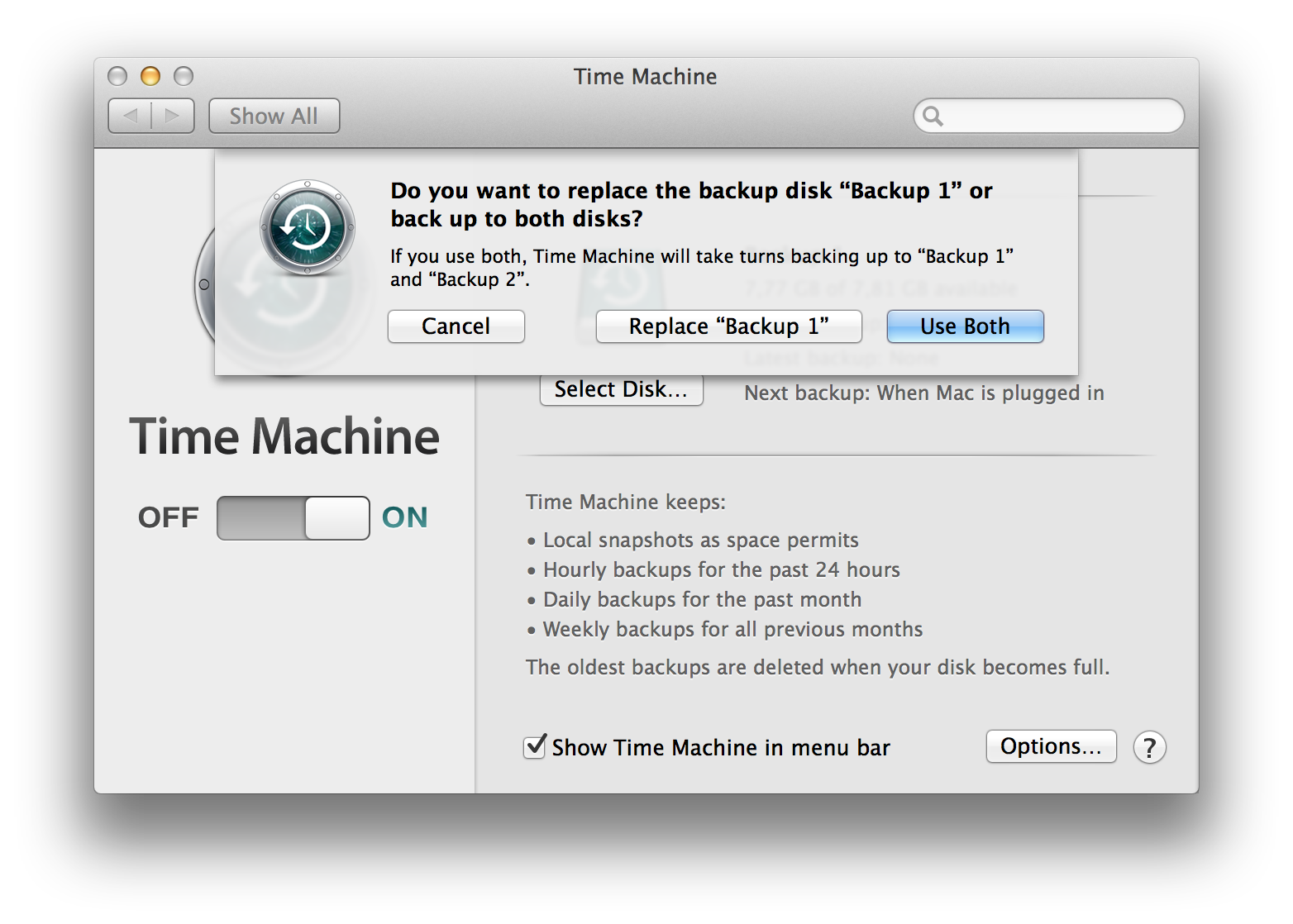
Despite constant encouragement these days to push our valuable data into "the cloud", there is still a genuine need for offline backups. Since its introduction in OS X Leopard, Apple has improved the Time Machine drastically. Within OS X Mavericks, Mac users can not only enjoy encryption and improved notification support but also backup disk rotation. This means that you can now choose multiple drives for Time Machine to use, and it's easy to set up!

To add extra drives to your Time Machine backup routine, do this:

• Open System Preferences from the Apple menu and click "Time Machine"
• Click "Select Disk..."
• Choose the volume you want to add to your backup routine, then click "Use Disk"
• Click "Use Both" to add the new drive to your backup schedule.

Your Mac will rotate its backup schedule to include all of the volumes you add to Time Machine, which is great because that means you can easily have separate backups at work and home simply by keeping different hard drives at each location. It's also great for automatically backing up to more than one Time Machine volume at the same location. For example, you can backup to a Time Capsule on your own network, and have a second backup on a hard drive connected directly to your Mac.

Time Machine will show you files from the volume it most recently used for backing up content. If you need to see files from a different backup location, just press the Option (Alt) key and choose "Browse Other Backup Disks..." from the Time Machine menu in the menu bar.