macOS Big Sur has been out for a while now, but macOS releases never get quite as much attention as iOS releases, so there may still be some features that you're not aware of.
• AirPods Auto Switching - With macOS Big Sur and iOS/iPadOS 14, your AirPods will swap automatically to the device that you're using at the current time, with no need to manually change the device you're using them with. AirPods will work with iPhone, iPad, or Mac you're actively using and listening to audio on.
• Drag and Drop Menu Bar Icons - If you open up the Control Center, you can click and drag on any of the options to add it to the menu bar. So if you want Do Not Disturb to have a one-click menu bar toggle, just drag it to the menu bar from Control Center. This works for Now Playing, AirDrop, DND, and more.
• Enhanced Voice Memos - When you use Voice Memos in Big Sur, there's a new option to automatically reduce background noise and echo with a single click, useful when you're recording lectures or meetings.
• 4K YouTube Videos - YouTube videos can be watched in 4K HDR in macOS Big Sur because the OS supports YouTube's VP9 codec. Note that 4K YouTube options are going to be limited to newer Macs by default, but there's a trick to enable them on older Macs. Enable the Develop menu in Safari settings (Safari > Preferences > Advanced), select Experimental Features, and make sure both VP9 Decoder and VP9 SW Decoder on Battery are enabled.
• Resize Widgets - macOS Big Sur has a new widget interface, and if you right click on any widget that has sizing options, you can choose a new size.
• Silent Notifications - On any incoming notification in the Today center, if you right click you can select "Deliver Quietly." This setting will prevent future notifications from that app from popping up on your screen, but you'll see them in the notifications list.
• Message Effects - Messages in Big Sur is a lot more like the Messages app on iOS devices. You can use Message Effects to enhance messages, find GIFs and insert photos. Just click on the little "A" on the left of the text bar to see a dropdown list of the options.
• Disable Tinting - Want a Dark Mode that's even darker or a Light Mode that's brighter? That's possible if you turn off window tinting. Open up System Preferences, choose General, and uncheck "allow wallpaper tinting in windows." With this disabled, windows won't be affected by the wallpaper that you're using.
Do Not Disturb mode is one of the best features you can use if you want to focus on a task, and not be distracted by the myriad endless notifications and alerts that pop up on the Mac. Enabling and disabling the feature with a keyboard shortcut offers a quick way to toggle the feature off or on as quick as possible and at any time.
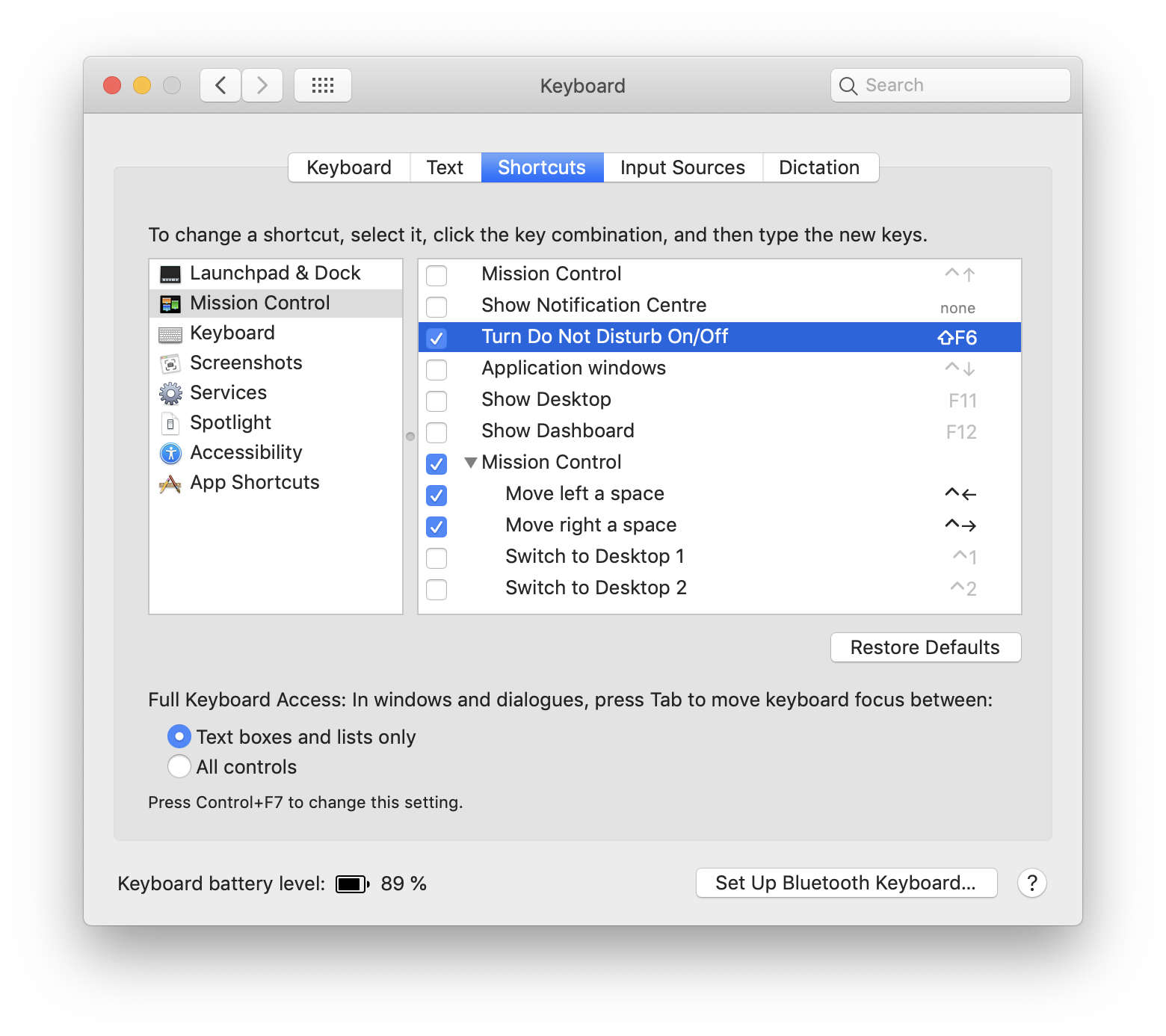
To be able to toggle Do Not Disturb off or on by keyboard shortcut, you’ll need to enable a keyboard shortcut for it first. Here’s how to do that:
• Go to the Apple menu and select “System Preferences”
• Go to “Keyboard” and then choose the “Shortcuts” tab
• Select “Mission Control” from the Shortcuts options
• Locate “Turn Do Not Disturb On/Off” and make sure that is checked to be enabled
• Click directly to the right of “Turn Do Not Disturb On/Off” and then press a keyboard shortcut combination to set as the Do Not Disturb keyboard shortcut
In the example (see screenshot), the keystroke combination "Shift F6" was set as the keyboard shortcut for enabling and disabling Do Not Disturb mode. You can set any keyboard shortcut you want for this purpose, just make sure it’s unique and does not overlap with another keystroke combination or feature. Once the keyboard shortcut for toggling Do Not Disturb mode is enabled, you can use it at anytime by pressing the keystroke combination you set in the above steps.
When Do Not Disturb mode is on (the Notification Center icon in the menu bar is dimmed), all notifications and alerts will not show up, but they will still be contained within the Notification Center.
When Do not Disturb mode is off, all alerts and notifications will come through to the Mac as usual, showing up as pop-up alerts in the upper right corner of the screen.
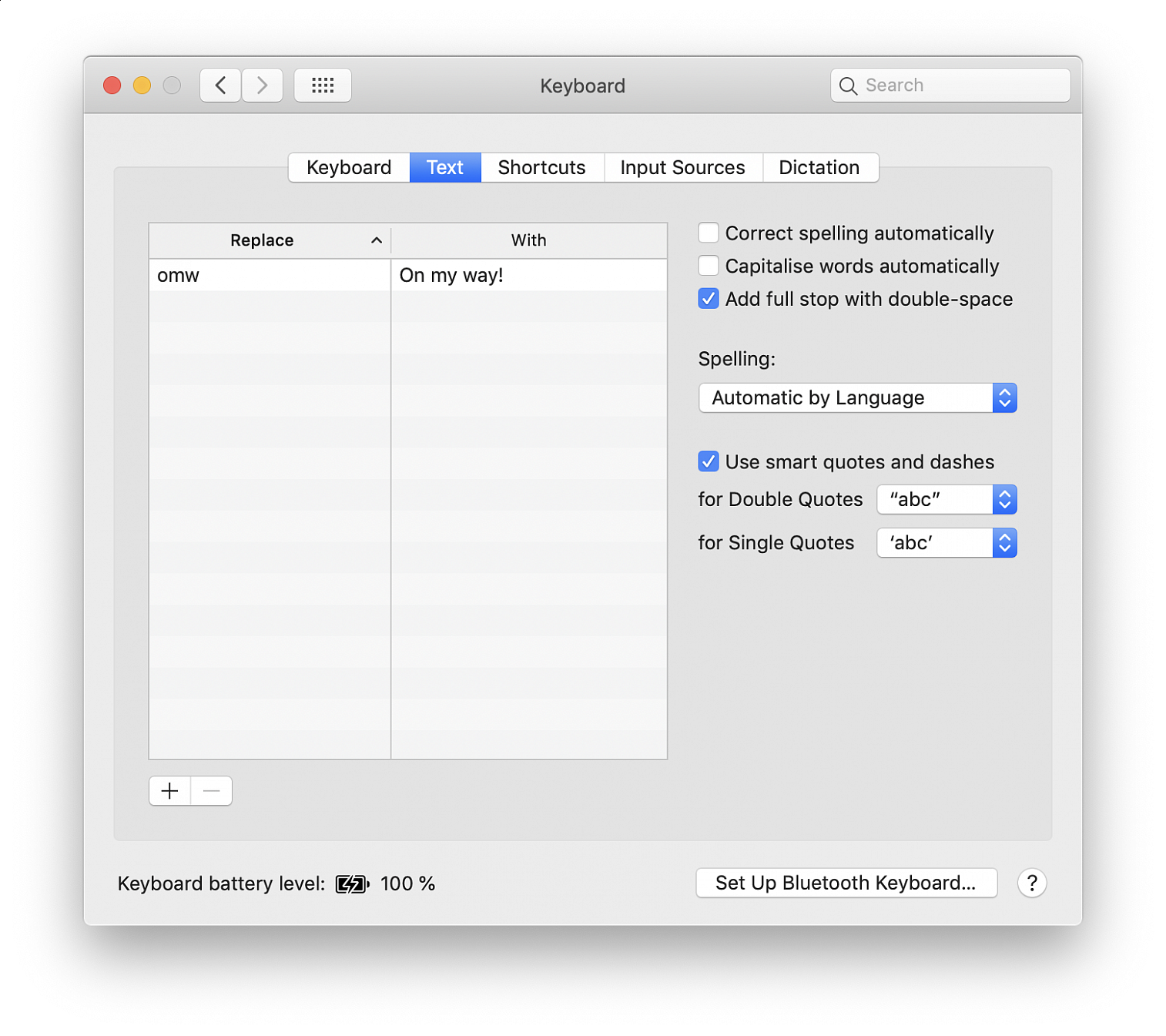
macOS Mojave includes a shortcut for ending a sentence with a full stop by just pressing the space bar twice. This means that hitting the spacebar twice will insert a period and a space automatically at the end of a sentence (or a word).
Automatically typing periods comes to the Mac from the iPhone and iPad world. To enable this feature:
• Go to the Apple menu and choose "System Preferences"
• Select the “Keyboard” preference panel, then choose the “Text” tab
• Locate the setting for “Add full stop with double-space” and toggle the checkbox to the "On" position
• Exit System Preferences
Now when you hit the space bar twice, a period and a space will be inserted automatically.
Wireless interference can cause Wi-Fi and Bluetooth devices to disconnect or perform poorly. Bluetooth enabled keyboards and mice may not pair or connect consistently, or audio from Bluetooth enabled earphones or speakers may be choppy, but you can take steps to reduce or overcome it.
Any of these symptoms could be caused by interference affecting the Wi-Fi or Bluetooth signal:
• Device doesn't connect or stay connected
• Connection is slow and signal strength is low
• Bluetooth audio skips, stutters, cuts off, or has static or buzzing
• Pointer movement is erratic or jumpy
These general steps can help achieve a cleaner, stronger wireless signal:
• Bring your Wi-Fi device and Wi-Fi router closer together. Bring the Bluetooth devices that are connecting to each other closer together.
• Avoid using your wireless devices near common sources of interference, such as power cables, microwave ovens, fluorescent lights, wireless video cameras, and cordless phones.
• Reduce the number of active devices that use the same wireless frequency band. Both Bluetooth and Wi-Fi devices use the 2.4 GHz band, but many Wi-Fi devices can use the 5 GHz band instead. If your Wi-Fi router supports both bands, it might help to connect more of your Wi-Fi devices to the 5GHz band. Some dual-band routers manage this for you automatically.
• Configure your Wi-Fi router to use a different Wi-Fi channel, or have it scan for the channel with the least interference. Most routers perform this scan automatically on startup or when reset.
If you're using USB 3 devices with your computer, you can limit their potential to interfere with nearby wireless devices:
• Use a high-quality, shielded USB cable with each USB 3 device.
• Move your USB 3 devices—including any USB hubs—farther away from your wireless devices.
• Connect USB 3 devices to the ports farthest from your computer's Wi-Fi antenna. For example, if your computer has ports on the back, prefer the USB ports closest to the middle. If your computer has ports on the side, prefer the USB ports closest to the front.
• Turn off any USB 3 devices that aren't in use.
Avoid physical obstructions in the path of your wireless signal. For example, a metal surface between your Bluetooth mouse and computer could cause the mouse to perform poorly, and a metal-reinforced concrete floor between your Wi-Fi router and Wi-Fi device could cause poor Wi-Fi performance.
• Low interference potential: wood, glass, and many synthetic materials
• Medium interference potential: water, bricks, marble
• High interference potential: plaster, concrete, bulletproof glass
• Very high interference potential: metal
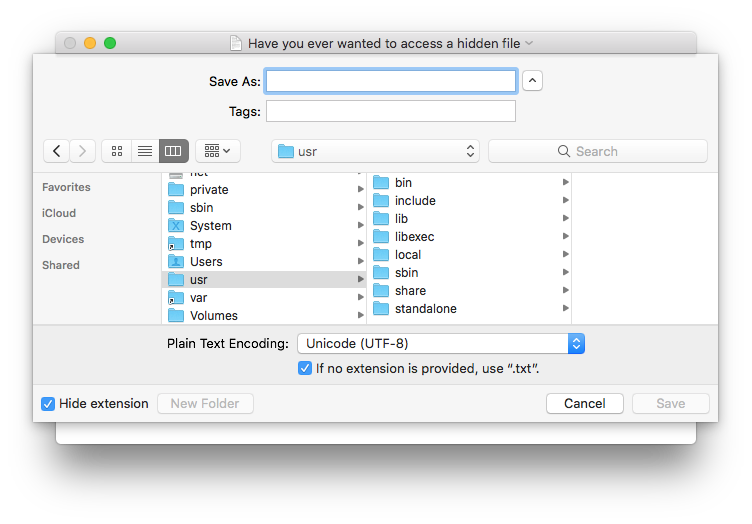
You can easily toggle hidden files by hitting Command+Shift+Period in any dialog window.