Cocktail is a general purpose utility for macOS that lets you clean, repair and optimize your Mac. It is a powerful digital toolset that helps hundreds of thousands of Mac users around the world get the most out of their computers every day.

Get Cocktail here

Save a slideshow as a video

Posted in Photos Tips & Tricks

Apple Photos app lets you select a bunch of photos & videos and play them as a slideshow with music, so you can view them comfortably like a movie. The slideshow is customizable with music, transition effects, and a custom duration for each image. If the video looks nice, you may want to save it as a video file.

Follow these steps to export a slideshow as a video movie:

• Open the Photos app and go to the Library section or an album
• Hold the Command key and select multiple images (or press Command + A to select them all)
• Click File > Play Slideshow from the top menu bar
• Click Customize to fine-tune the transition, duration, and music
• Click File > Export > Export Memory Video from the top menu bar
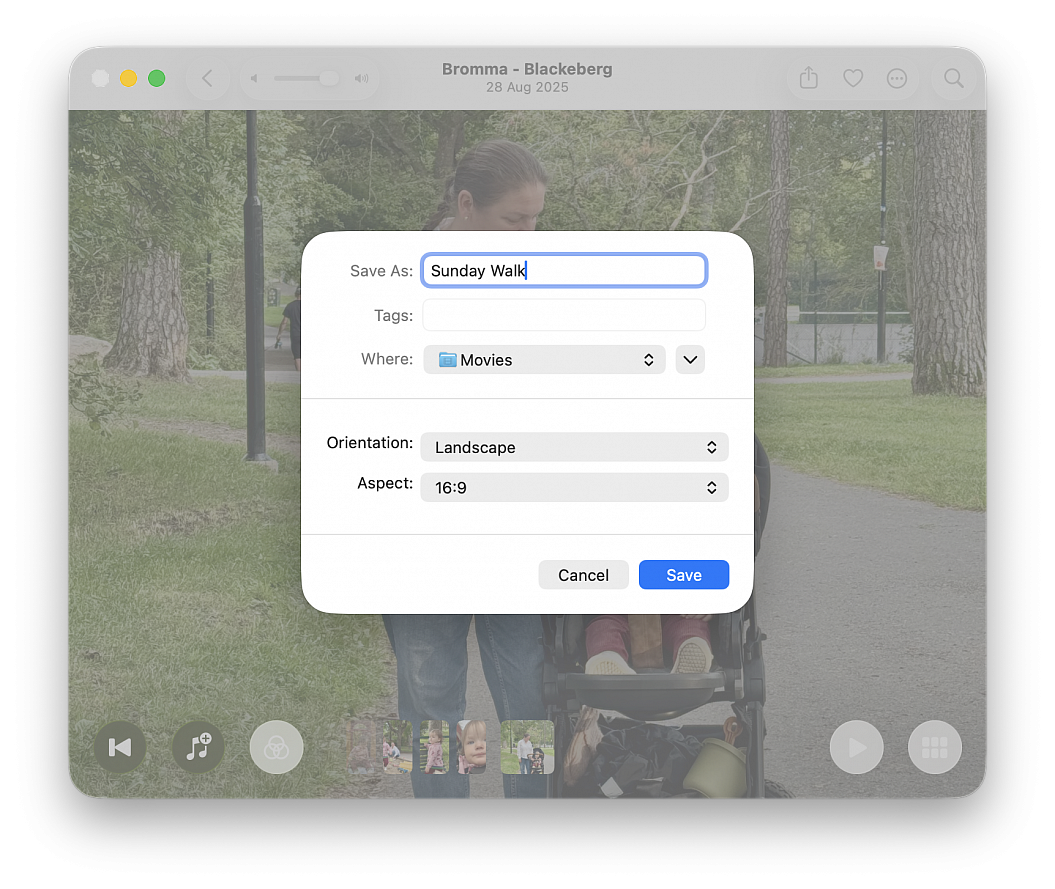
• Rename the video file, select a location, adjust the orientation and aspect ratio if needed, and click Save

The photo slideshow will be exported as an MOV file, which you can watch in the built-in Apple QuickTime app or a third-party app.
 

Move Photos library to a new location

Posted in Photos Tips & Tricks

Need to move your Photos library to a new location? No problem, it's easily done.

First you need to physically copy the picture library to the new location, and then you have to tell Photos where the new location is. Here's how to do this:

• Go to the Pictures folder (in your home directory) and locate the "Photos Library" package
• Copy the "Photos Library" package to the new destination by dragging and dropping it to the desired location
• Hold the Option (Alt) key down and launch Photos
• Find the Photos Library in the list or click the "Other Library…" button to manually navigate to the new location and then click the "Choose" button

Now Photos will use the library you have specified in the new location. Be aware that if the library is located on an an external hard drive and you launch Photos without that drive connected, your images won’t be available.