The Passwords app, Apple’s built-in password manager, not only stores your logins and passwords for easy authentication, but it can also alert you to security risks. Passwords app makes it easy to quickly find compromised, reused, or weak passwords, and take action to secure your accounts.
If you’re a Passwords app user and you haven’t investigated this on your own yet, it’s a worthwhile endeavor to do so. It makes it easy to determine if you should be changing a password that has been compromised without your knowledge (and that’s usually the case, since data breaches happen all the time and they can be hard to keep track of).
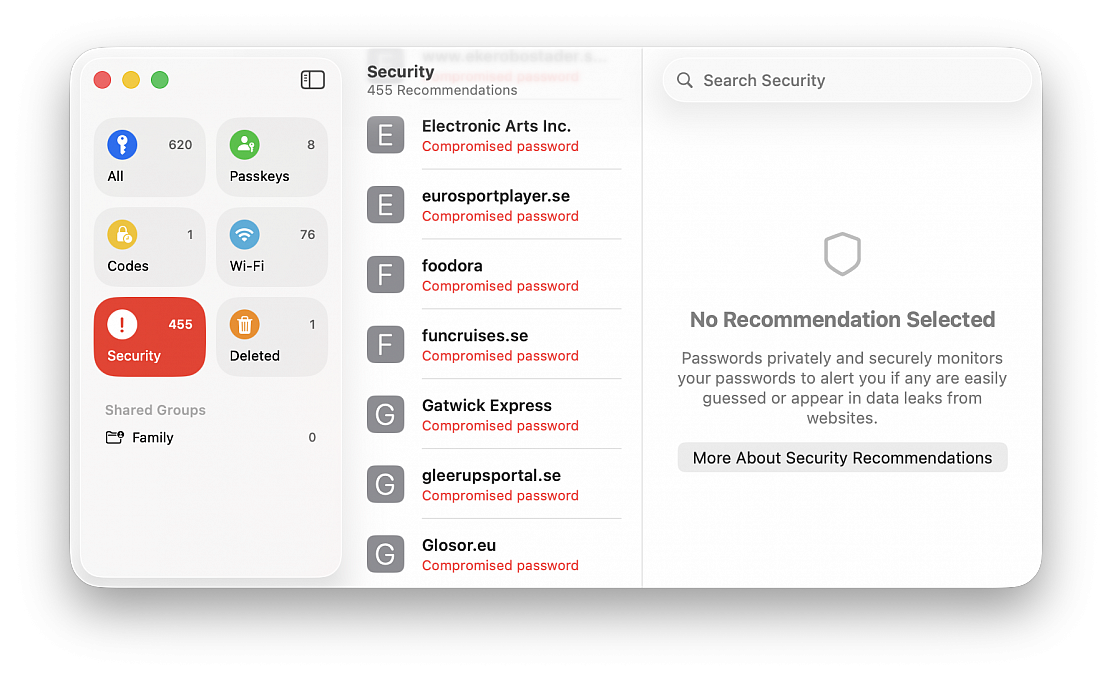
You can review password security warnings and compromises directly within the Passwords app on Mac:
• Hit Command+Spacebar to open Spotlight, type “Passwords” and hit return to launch Passwords app
• Authenticate within the passwords app as requested, with password or Touch ID
• Click on Security
The Passwords app categorizes issues to help you prioritize fixes into several categories:
Compromised Passwords
These passwords have appeared in known data breaches, and these are high priority for security. Since the password has been compromised, it should be changed immediately. This feature uses Apple’s integration with breach data sources, similar to services like Have I Been Pwned, to detect compromises from various sources. Many users who store the majority of their passwords in Passwords.app and iCloud will find results in the section, often for things like online retailers, that you may not have even known had a security breach.
Reused Passwords
This means the same password has been used across multiple accounts. Basically this poses a security risk because if one account is compromised, all others are now at risk since they use the same passwords. It’s best practices to use a unique password for each individual login and site, which is also why the random strong password generating feature of Passwords.app is so powerful, and useful.
Easily Guessed / Weak Passwords
These passwords are easy to guess, or don’t meet modern security standards. Any shorter or simpler basic passwords would qualify under this list, for example if you use the password “password123” for a password, it would probably appear as a weak and easily guessed password. Stronger passwords are longer and more complex with mixed characters. Any weak password should be replaced by a stronger alternative.
If you do see a problem to address, like a compromised password (or several, as is often the case), you can click on “Change Password” for the flagged account, and it will typically take you to the website whenever available, that you can update and change the password with that specific service. You’ll then want to save the new password with Passwords app, so that you can use it easily in the future, and so that Passwords app can check it for data breaches too.
With Passwords app, you can help to monitor security of your account credentials, and reduce your risk across multiple platforms. And because it’s built directly into macOS, iOS, and iPadOS, there’s no need for a third party app or service. This is a simple way to improve your account security and internet presence, and so it’s worth opening the Passwords app and taking a look at the Security section from time to time.
Window Tiling
With macOS Sequoia, Apple has introduced a new window tiling management feature that aims to make it easy to arrange open windows into a layout that works best for you. When you drag a window to the edge of the screen, macOS Sequoia suggests a tiled position by displaying a frame, and you release the window to drop it right into place. This way, you can quickly arrange two app windows side by side, or place four windows in corners to keep several apps in view at once. When a window has been dragged to tile on one side or the other, dragging it back immediately resizes it to its original width and height.
macOS 15 also adds new tiling options to the green traffic light in the top corner of windows. Hover your pointer over the green button, and a menu appears with options to move and resize or fill and arrange all open windows.
Safari Video Viewer
When watching a video in Safari, click the menu icon in the left-hand side of the address bar and select the new Video Viewer option. This makes the playing video expand within the Safari window into a kind of theater mode that blurs everything out behind it, bringing the content front and center.
It also includes a native playback controls interface that replaces YouTube's – or the UI of whatever video you are playing. Options include AirPlay, volume, Picture in Picture, and playback speed.
Move & Resize Windows Controls
Accessed from the menu bar, a new "Move & Resize" option in the Window menu allows you to easily manage and arrange windows on your screen by offering various tiling and resizing options. You can move a window to the top, bottom, left, or right half of the screen, or position it into one of the four corners if you prefer a quarter-screen layout.
macOS also provides more flexible arrangements, such as splitting the screen horizontally or vertically, where you can tile windows side by side or one above the other. For even more control, there's a feature to quickly return a window to its previous size and position, making it easy to undo any changes.
iPhone Notifications
In System Settings > Notifications, there's an "Allow notifications from iPhone" menu that gives you several options. These include options to enable or disable sounds for notifications from iPhone, select which specific app notifications to mirror, and turn the entire feature on and off.
Show Passwords in Menu Bar
If you want to make access to the new Passwords app a lot more convenient, go to Passwords ➝ Settings... and check the box next to "Show Passwords in Menu Bar." When you're next on a website in Safari that you have login credentials for, click the key icon in the menu bar, and you'll see the dropdown menu automatically detect which login details you're looking for, ready for you to select. This also works with other browsers that have the iCloud Passwords browser extension installed.
Highlight Text in Notes
The Notes app now supports colors for typed text, allowing for highlighting. Apple added five colors, including pink, purple, orange, mint, and blue, with the colors able to be added through the formatting interface. Simply click on the Aa button in the toolbar to get to the color options when a word or phrase is selected.
Math Notes
Apple has added a powerful new feature to your Mac's Calculator app: Math Notes. This integration between Calculator and Notes offers a versatile tool for all your calculation needs. It's particularly handy for splitting bills, calculating group expenses, or working through more complex mathematical problems.
Math Notes allows you to type equations directly into a note, with automatic solving when you add an equals sign. You can perform a wide range of calculations, including defining variables for more complex math. For example, if you're planning a night out, you could write "dinner = $57" and "movies = $24" in a note, then simply type "dinner + movies =" to get the total cost. To access the feature, click the calculator symbol at the bottom left of the calculator window and select Math Notes.
You're not limited to accessing Math Notes through the Calculator app – you can also use the feature directly within the Notes app using any new or existing note. In fact, you can get Math results almost anywhere in the operating system. If you type an equation into Spotlight, for example, you'll get a result, and the same goes for apps like Messages.
Private Wi-Fi Address Options
In System Settings > Wi-Fi, if you click the Details button next to the currently connected network, there's a new Private Wi-Fi address option that may be familiar to users with iOS devices. A fixed private address reduces cross-network tracking by using a unique Wi-Fi address on the network. You can make it Fixed, Rotating, or turn off the option.
Record and Transcribe Voice Notes
Apple has made a significant enhancement to the Notes app, introducing a built-in audio recording feature that streamlines the process of capturing and transcribing voice notes. The new audio recording tool in Notes offers more than just simple voice capture. As users record, the app automatically generates a real-time transcript, making it easier to review and search through recorded content.
To record a voice note, simply click the new waveform icon in the Notes toolbar. An interface will appear on the right showing the audio recording controls, as well as a speech bubble icon that you can use to view the transcript. When you've finished your recording, it will be saved in the note along with the accompanying transcription.
Window Title Bar Double-Click Options
In System Settings > Desktop & Dock, there's a new option to change the behavior of a window when you double-click its title bar. In Sonoma, the default behavior is to zoom the window, but in Sequoia you can change "Double-click a window's title bar to" Fill, Zoom, Minimize, or Do Nothing.