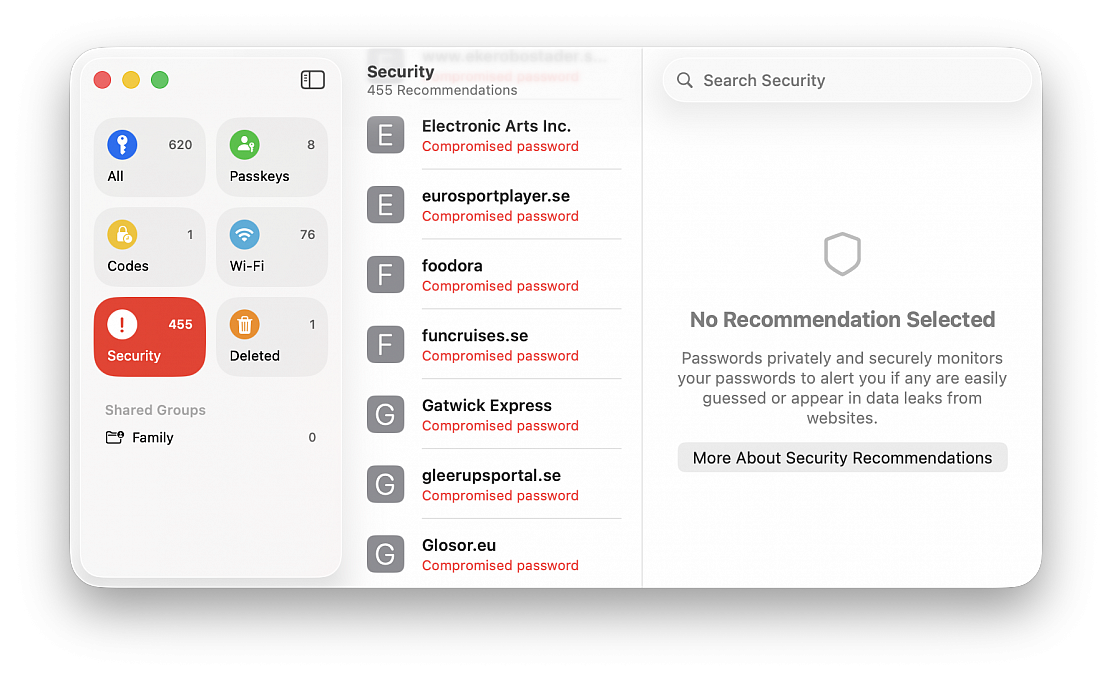
Find compromised and reused passwords
Posted in
The Passwords app, Apple’s built-in password manager, not only stores your logins and passwords for easy authentication, but it can also alert you to security risks. Passwords app makes it easy to quickly find compromised, reused, or weak passwords, and take action to secure your accounts.
If you’re a Passwords app user and you haven’t investigated this on your own yet, it’s a worthwhile endeavor to do so. It makes it easy to determine if you should be changing a password that has been compromised without your knowledge (and that’s usually the case, since data breaches happen all the time and they can be hard to keep track of).
You can review password security warnings and compromises directly within the Passwords app on Mac:
• Hit Command+Spacebar to open Spotlight, type “Passwords” and hit return to launch Passwords app
• Authenticate within the passwords app as requested, with password or Touch ID
• Click on Security
The Passwords app categorizes issues to help you prioritize fixes into several categories:
Compromised Passwords
These passwords have appeared in known data breaches, and these are high priority for security. Since the password has been compromised, it should be changed immediately. This feature uses Apple’s integration with breach data sources, similar to services like Have I Been Pwned, to detect compromises from various sources. Many users who store the majority of their passwords in Passwords.app and iCloud will find results in the section, often for things like online retailers, that you may not have even known had a security breach.
Reused Passwords
This means the same password has been used across multiple accounts. Basically this poses a security risk because if one account is compromised, all others are now at risk since they use the same passwords. It’s best practices to use a unique password for each individual login and site, which is also why the random strong password generating feature of Passwords.app is so powerful, and useful.
Easily Guessed / Weak Passwords
These passwords are easy to guess, or don’t meet modern security standards. Any shorter or simpler basic passwords would qualify under this list, for example if you use the password “password123” for a password, it would probably appear as a weak and easily guessed password. Stronger passwords are longer and more complex with mixed characters. Any weak password should be replaced by a stronger alternative.
If you do see a problem to address, like a compromised password (or several, as is often the case), you can click on “Change Password” for the flagged account, and it will typically take you to the website whenever available, that you can update and change the password with that specific service. You’ll then want to save the new password with Passwords app, so that you can use it easily in the future, and so that Passwords app can check it for data breaches too.
With Passwords app, you can help to monitor security of your account credentials, and reduce your risk across multiple platforms. And because it’s built directly into macOS, iOS, and iPadOS, there’s no need for a third party app or service. This is a simple way to improve your account security and internet presence, and so it’s worth opening the Passwords app and taking a look at the Security section from time to time.