Did you know that you can turn off Apple Intelligence features like Siri AI, summarization features, and more on macOS 27 Golden Gate?
For more information on parental controls, see Apple Devices for Kids and Families.
Siri
• You will need to enable Screen Time to block Siri; go to System Settings > Screen Time > Contents & Privacy
• Turn off the Contents & Privacy switch at the top of the screen
• Click Siri
• Change Siri to Siri Classic
• Go through the list of Capabilities and turn each one off
Notifications
• Go to System Settings > Notifications
• Turn off the Summarize notifications
Messages
• Launch Messages
• Go to Settings > General
• Turn off Summarize Messages
Mail
• Launch Mail.
• Go to Settings > Viewing
• Turn off Summarize Message Previews
• Go to Settings > Composing
• Turn off Personalize Smart Replies
• Go to the View menu and make sure Show Mail Categories is not checked
Journal
• Launch Journal
• Go to Settings > General
• Turn off Get Writing Prompts
Finder & other apps
• In Finder, go to Finder > Settings
• Uncheck Suggest file names
Siri & other apps
• Go to System Settings > Siri.
• Click on App Access.
• Click on each app and…
• Turn off Learn from this application.
• Turn off Show Siri Suggestions in application, if shown
• Repeat for each app in the list
Note: In System Settings > Privacy & Security, there is an Apple Intelligence Report. We recommend keeping this setting turned on so that you can verify that Apple Intelligence is truly not functioning.
Safari on Mac has supported extensions since version 5, which was released in 2010, but despite years of support, the Safari Extensions store is a lot more limited than the Chrome Web Store. To address this, Apple now lets you create your own extensions based on your needs, without compromising your privacy. You can simply describe what you want, and Apple Intelligence will likely build a working Safari extension just for you in a couple of minutes.
Just like extensions you download from the App Store, the ones you create will also be compatible with macOS, iOS, and iPadOS. Plus, they automatically sync via iCloud on all devices where you have signed in with the same Apple Account.
Create Safari extensions on Mac:
• Upgrade your Mac to macOS 27 Golden Gate and make sure new Siri (and by extension, Apple Intelligence) is set up
• Open Safari and visit a website
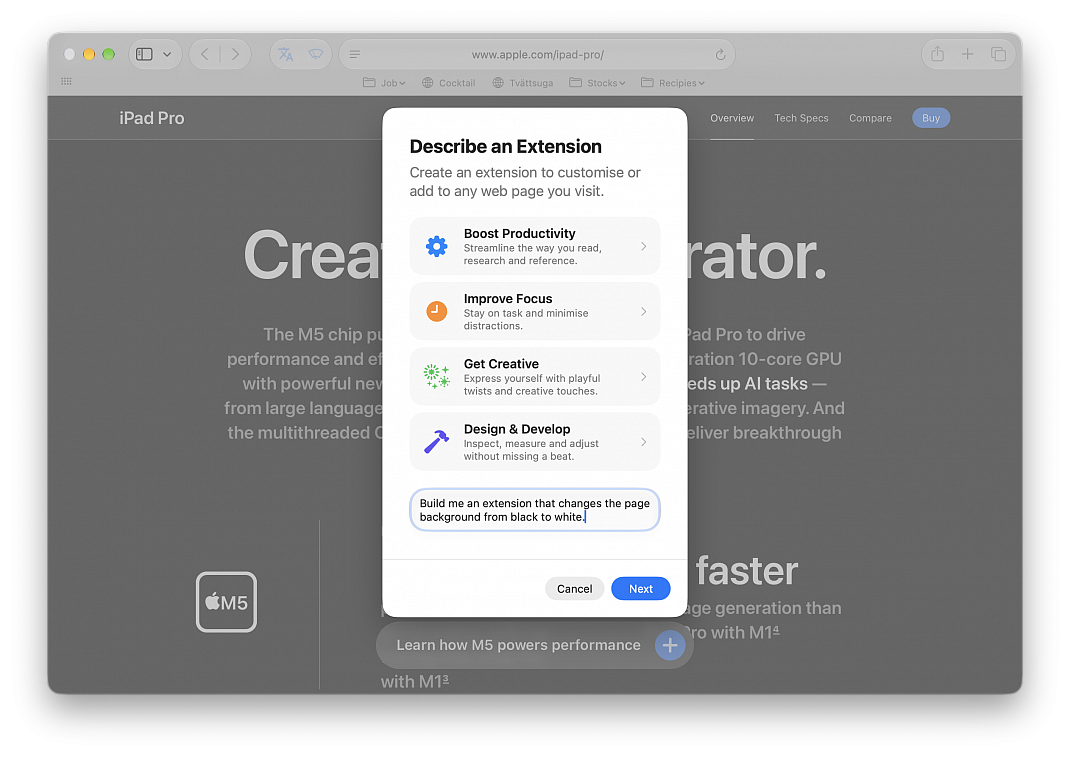
• Click the three-line menu icon on the left side of the address bar as shown in the screenshot below, and select Describe Extension
• Think of what you want the extension to do; what new feature or improvements you want to add to Safari, or pick a suggested idea from these categories: Boost Productivity, Improve Focus, Get Creative, and Design & Develop
For example, tell Apple Intelligence to build an extension that changes the page background from black to white. Describe that in the box in simple words:
"Build me an extension that changes the page background from black to white."
and click Next.
Safari will search if there is an existing extension on the App Store that already does what you want. In case there are none (which is the case in most cases), it will say ‘No App Store Results. Create an extension to get started.’ Click the Create button.
• Wait for Apple’s AI to build it; you’ll see a ‘Creating Extension…’ status in the upper left corner of the screen
• Once the extension is created, click the ‘Try’ button to give it a spin
• After clicking ‘Try,’ you’ll likely have to click the extension icon again at the top and allow it to run
• If the extension works as you asked, then there is nothing left to do, but if not, you can tweak it: click Edit or View and then describe the change
• Finally, click Save to update the extension
You can manage this extension (Mac and iOS) the same way you can other third-party ones.
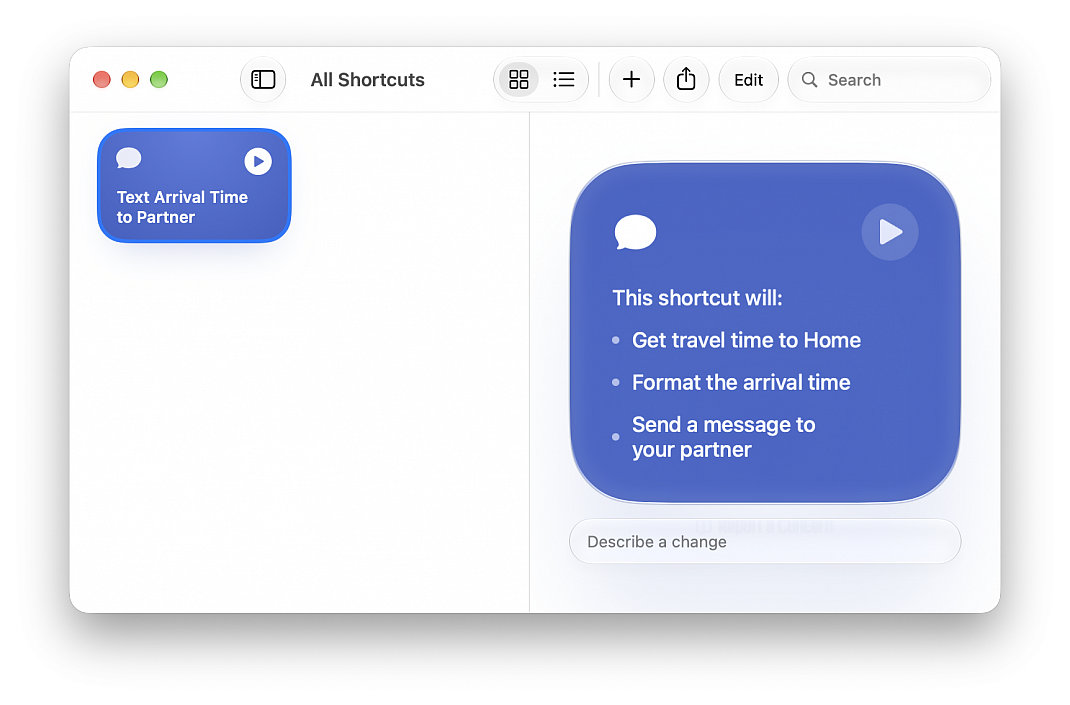
On macOS 27 Golden Gate, Apple Intelligence is now in Shortcuts in a wildly convenient way; you can now create Shortcuts and automated tasks by describing what you want the task to do in plain English.
With Apple Intelligence, you can create a custom shortcut just by describing what you want.
• In the Shortcuts app on your Mac, click the Add button in the toolbar
• Describe in normal language what you would like the shortcut to do, for example: "Whenever I'm leaving work, calculate the driving travel time home, and text my partner the arrival time."
• The Shortcuts app creates and names a shortcut based on your input
• To test your new shortcut, click Play button
• You can describe a change or hit edit to modify the contents directly
Note: Apple Intelligence on macOS 27 is not available in all languages or regions.
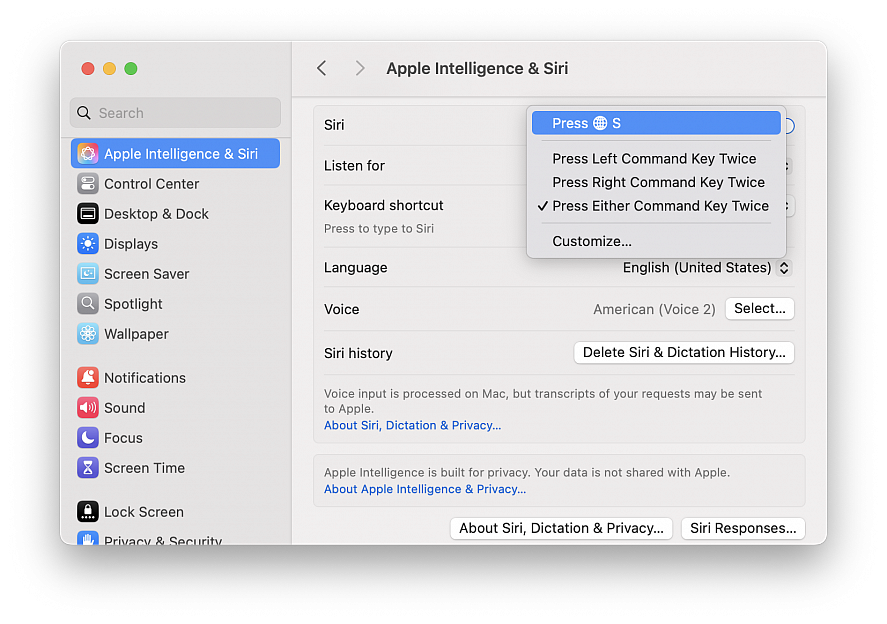
The Type to Siri feature on Mac is super useful, particularly now that Siri has Apple Intelligence features. Using Type to Siri is perhaps even more handy for Mac users than using the voice activated Siri commands, but some Mac users may find themselves accidentally triggering Type to Siri by inadvertently pressing the initiating command sequence.
If you wish to change the keyboard shortcut for Type to Siri on Mac, you can do so rather quickly with a settings change:
• Go to the Apple menu and choose “System Settings...”
• Select “Apple Intelligence & Siri”
• Select the “Keyboard Shortcut” dropdown menu to choose your desired keyboard shortcut for starting Type to Siri, the default options are: Globe/fn+S, Press Left Command key twice, Press Right command key twice, Press either command key twice or Customize (you can select just about any keyboard shortcut this way)
If you find yourself accidentally initiating the Type to Siri feature with the double press of command key, you might try switching the Type to Siri keyboard shortcut to Globe/fn+S instead, or something else entirely using the customize feature. Or, if you only use one of the Command keys, you might find switching the keyboard shortcut to the non-used Command key to be helpful as well.