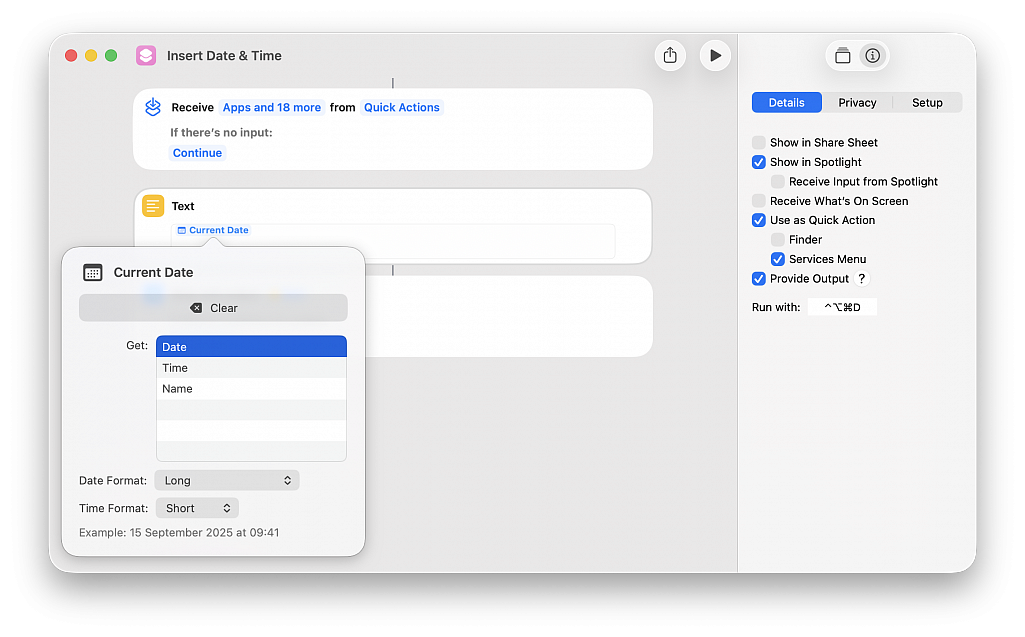
On macOS 27 Golden Gate, Apple Intelligence is now in Shortcuts in a wildly convenient way; you can now create Shortcuts and automated tasks by describing what you want the task to do in plain English.
With Apple Intelligence, you can create a custom shortcut just by describing what you want.
• In the Shortcuts app on your Mac, click the Add button in the toolbar
• Describe in normal language what you would like the shortcut to do, for example: "Whenever I'm leaving work, calculate the driving travel time home, and text my partner the arrival time."
• The Shortcuts app creates and names a shortcut based on your input
• To test your new shortcut, click Play button
• You can describe a change or hit edit to modify the contents directly
Note: Apple Intelligence on macOS 27 is not available in all languages or regions.
If you’re a legal or governmental official, journalist, researcher or in a similar profession, you may need to enter the current date and/or time in your documents for timestamping, record-keeping, regulatory compliance, etc. Learn how to use a Mac shortcut to quickly enter the current date and/or time in a text field without typing those details manually.
Instead of checking your computer’s clock and manually typing the date and/or time, you can automate it using a shortcut. This also ensures you can fill in the precise current date and/or time without the possibility of an error. It involves two simple steps: creating the shortcut once and then using it whenever needed.
• Open the Shortcuts app and choose File > New Shortcut
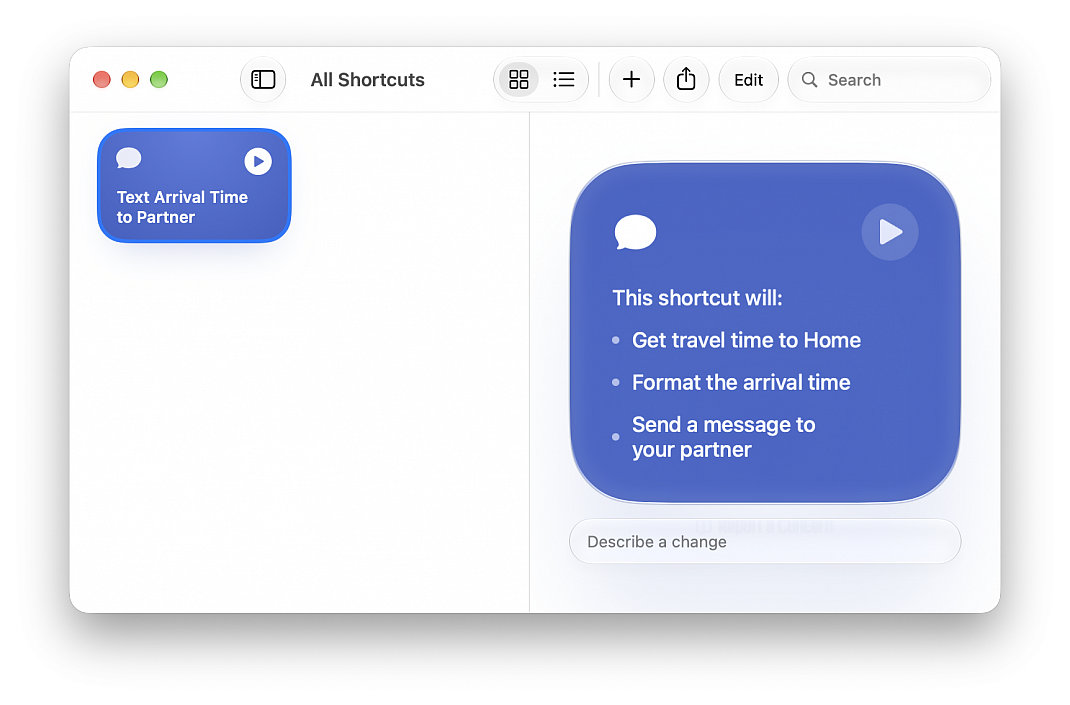
• Type “Text” in the top right search field and double-click the Text action to add it to your build
• Click in the text field, start typing “Current,” and select Current Date from the suggestions
• Select a Date Format (you can also pick a format for Time or set it to None if you only want to insert the date)
• Click the triangle Run button at the top to test your build; you’ll see the date and/or time appear on the screen
• Click the info button (i) in the top right corner of the window and check the box for Provide Output
• Click Add Keyboard Shortcut and press the keys you want to assign to run this shortcut (for instance, Control + Option + Command + D)
• Give a name to your shortcut (for instance, Insert Date & Time) and save the shortcut by closing the window (hit the red traffic light button)
• Open an app like Pages, Text Edit or Google Docs in Chrome and press the key combination; you’ll see that the current date and/or time are automatically typed in