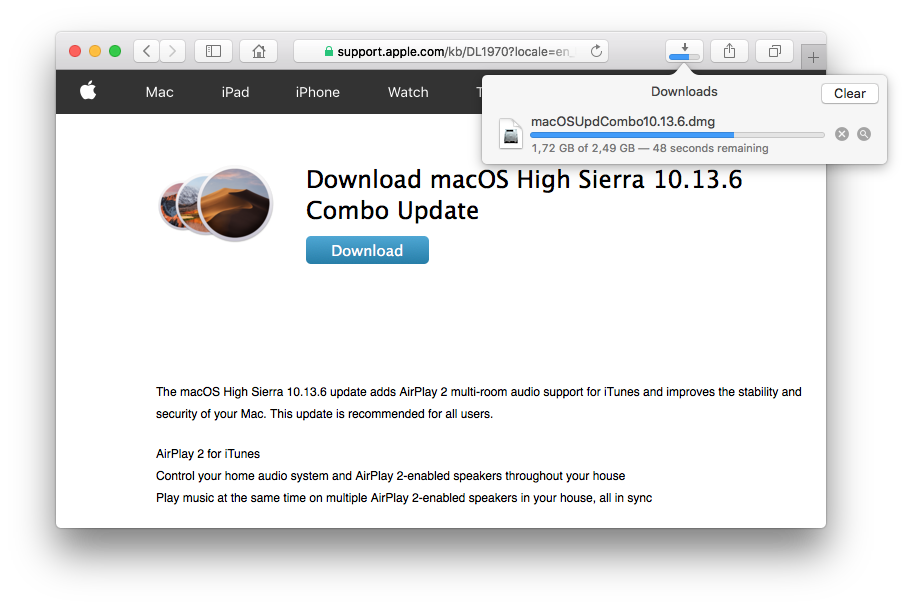
• Double-click a file's icon open it
• Select a file and press Command+C to copy a file's URL
• Select a downloaded file and drag it to a folder, to your Desktop, or even to a Dock icon to launch it with that application
Safari for both macOS and iOS have a setting you may never have noticed, since we so often have Internet access. This is an easily overlooked feature that’s actually really cool. Here’s how to save your Safari reading list for offline viewing.
In Safari for macOS, choose Safari > Preferences and then click Advanced. You can then check next to the Reading List label Save Articles for Offline Reading Automatically. If that option isn't checked, you can also view the Reading List in the sidebar, right-click an item, and choose Save Offline.
With iOS Safari, you navigate to Settings > Safari and swipe down to the bottom, and then tap the switch to on for Automatically Save Offline. If you have that option disabled, which it is by default, you’re prompted the first time you choose Add to Reading List from the Sharing sheet whether or not to save items from then for offline reading automatically.
Entering "apple" in the location bar of Safari will yield you Google search results for those terms. However, including a trailing slash will cause Safari to add the ".com" to a logical location in the address, and take you to that URL. So, "apple/" will take you to "apple.com". Finally, if you type “apple/macbook”, Safari will go to "apple.com/macbook”.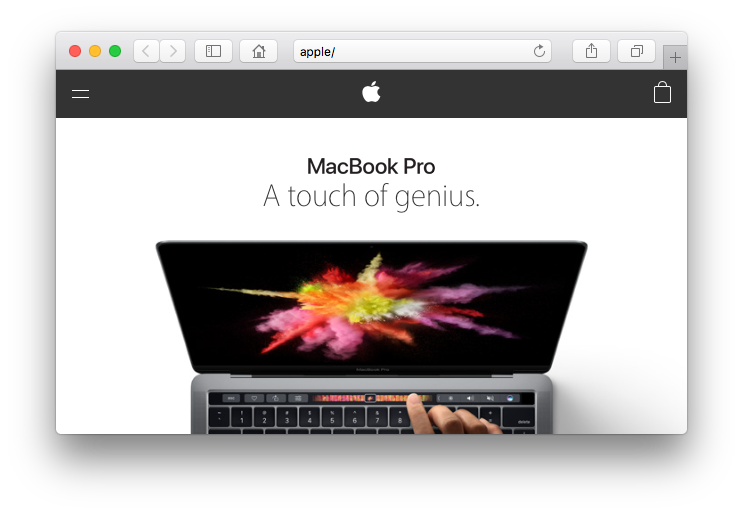
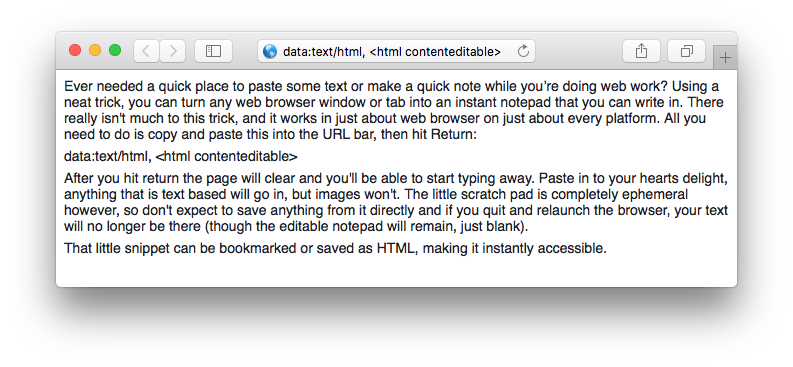
Using a neat trick, you can turn any web browser window or tab into an instant notepad that you can write in. There really isn't much to this trick, and it works in just about web browser on just about every platform. All you need to do is copy and paste this into the URL bar, then hit Return:
data:text/html, <html contenteditable>
After you hit return the page will clear and you'll be able to start typing away. Paste in to your hearts delight, anything that is text based will go in, but images won't. The little scratch pad is completely ephemeral however, so don't expect to save anything from it directly and if you quit and relaunch the browser, your text will no longer be there (though the editable notepad will remain, just blank).
That little snippet can be bookmarked or saved as HTML, making it instantly accessible.