Transfer files using Bluetooth on Mac and Windows PC
Posted in
Learn how to transfer photos, documents, audio, video, and other files between your Mac and a Windows computer using a Bluetooth connection.
Send files from Mac to Windows PC
• Open Settings on your Windows PC (you can launch it directly by pressing the Windows + I keys)
• Select Bluetooth & devices and make sure Bluetooth is activated
• Open System Settings on your Mac and select Bluetooth
• Scroll down to the Nearby Devices section, and you should see your Windows PC here, click the Connect button next to your PC name
• You should now get an alert on your Windows computer, click it
• Make sure the number on your PC screen matches the number on your Mac screen, then hit Yes or Allow to finish pairing
• Scroll down in your Windows PC Bluetooth settings and click Send or receive files via Bluetooth
• Click Receive files
• Open the built-in Bluetooth File Exchange app on your Mac, it's located in Applications > Utilities folder
• Select the files you want to send to your PC from the Finder interface and hit the Send button
• Choose your Windows PC from the list of devices and click Send
• Your Windows PC will start receiving the file, and after the transfer finishes, it will show a “Save the received file” window
• Click Finish to save the file in the location shown, or click Browse to select another location and save it there
Send files from Windows PC to Mac
• Launch Mac’s System Settings, click Bluetooth, and make sure it’s on
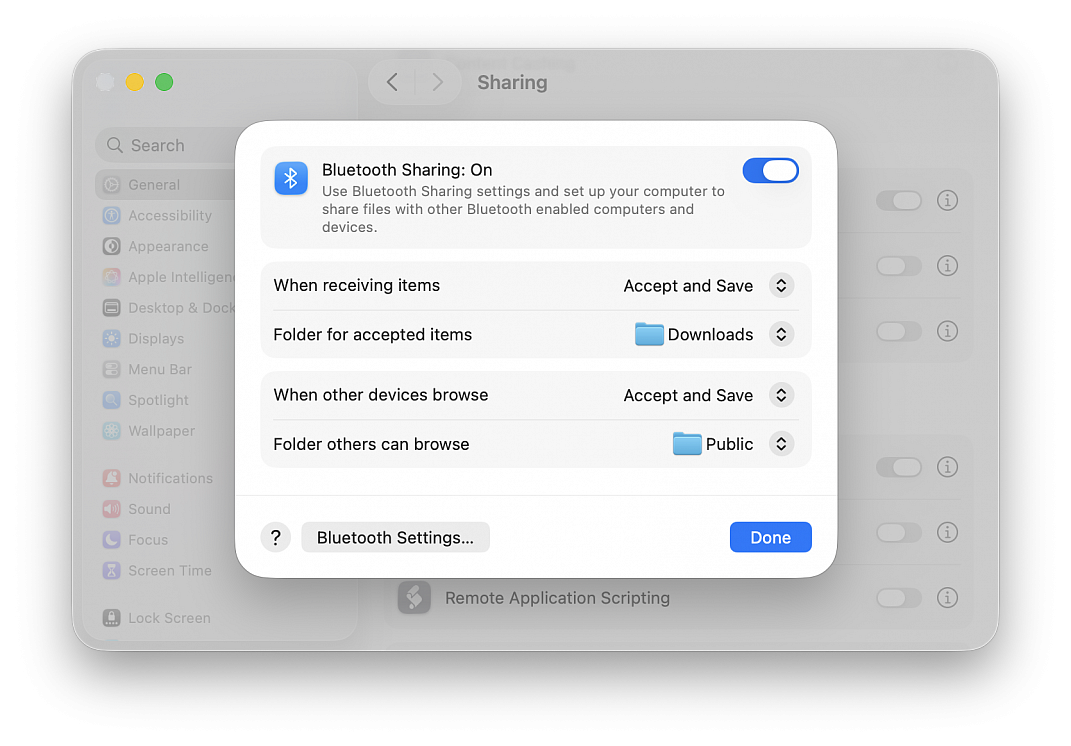
• Head to General > Sharing and ensure Bluetooth Sharing is enabled
• Open Settings on your Windows PC and select Bluetooth & devices
• Make sure Bluetooth is on, and click Add device (plus button) at the top, followed by Bluetooth
• Select your Mac, and you will get an alert on your Apple computer; make sure the numbers on your Mac and PC screens match and hit the Connect button in both places
• With the computers paired, click your Mac’s name at the top of the Bluetooth settings on your PC
• Scroll down and click Send or receive files via Bluetooth
• Click Send files
• Click your Mac on the “Select where to send your files” screen and hit Next
• Click Browse, select what you want to send from File Explorer, and then click Open, then click Next
• Hit Accept on your Mac to receive the incoming Bluetooth file transfer request
• Your PC will start sending the files to your Mac; once the transfer is successful, you’ll find these files in your Mac’s Downloads folder