Trash is one of those overlooked aspects of macOS that you probably don't think much about. That's fine, but there are also a handful of genuinely useful keyboard shortcuts that pertain to Trash on the Mac, and if you spend any time in the file system they're worth learning.
Send an item to Trash instantly.
Command+Delete with any file or folder selected will send it instantly to the Trash.
Return items from Trash to original location.
Command+Delete with anything currently in the Trash selected returns it to the original location in the file system. You can also access this by right-clicking an item and choosing "Put Back".
Empty Trash.
Shift+Command+Delete will immediately empty the Trash. This is the safer approach since it brings up the warning dialog telling you the action is permanent.
Empty Trash without warning.
Shift+Option(Alt)+Command+Delete will immediately force empty the Trash with no warnings, regardless of what's in the Trash.
In lots of places around your Mac, holding down the Command key while you're clicking on an item will give you info about where it lives rather than opening it. For example, you can Command-double-click a Spotlight result to open it in the Finder, or Command-click a Finder window's title to get a hierarchical view of where you are in your file system.
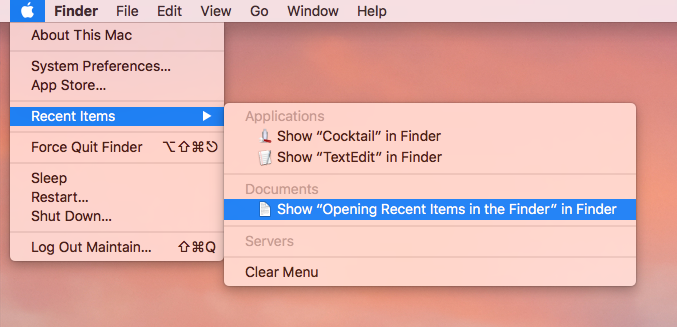
One of this feature's most useful implementations, though, is for the things you've accessed recently. If you click on the Apple menu in the upper-left corner of your screen and choose Recent Items, you've got fast access to recent applications, servers, and documents that you've used. If you then hold down the Command key before you click on an application or a document, you'll see the menu change, and you'll be given the option to open the item in the Finder instead.
Despite the promise long ago of the paperless office, we still need to print documents from our Macs at times. The usual launch an app to print a document routine works fine for that, but you can save a little time by printing your files directly from the Finder.
Printing a document without first launching the app that created it is easy. Just select the document and use the Command-P keyboard shortcut (or go the the File menu and choose Print). The default app for the file's format will launch, and in most cases will send the document to your default printer without any interaction.
Applications that expect more user input before printing, like professional design apps, will wait for you to configure your print settings before putting ink on paper. It adds back in an extra step, but for file formats that default to Preview, it's as simple as select-and-print.