Use the Magnifier app on Mac to zoom in on things
Posted in
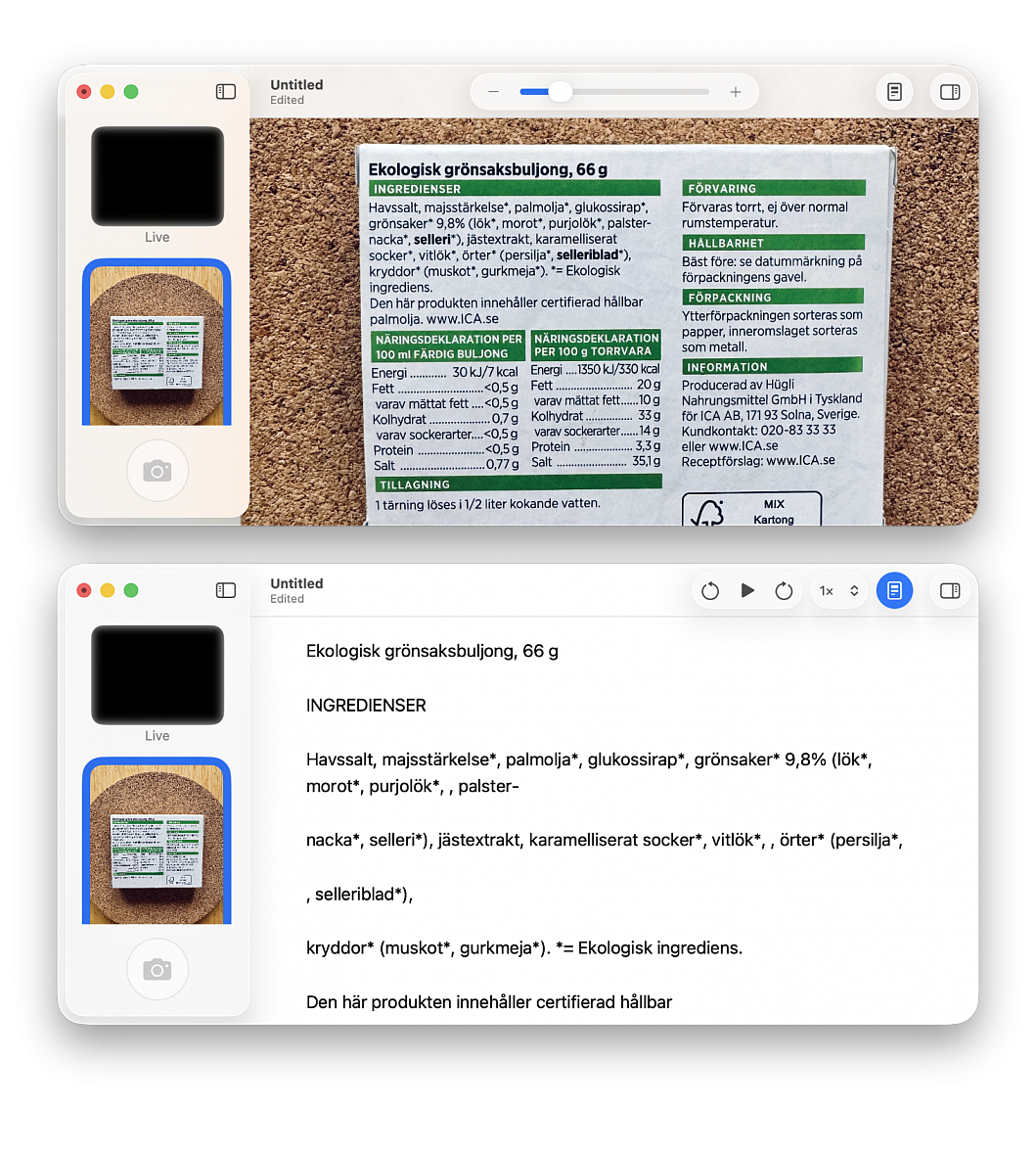
Magnifier app in macOS Tahoe lets you zoom in on small text on objects, things in your surroundings, or your face when applying makeup, plucking eyebrows, or putting on contact lenses.
Fundamentally, the Magnifier app on both macOS and iOS serves as a digital magnifying glass, you can:
• See a live camera feed and zoom in on it
• Take a picture and zoom in on it
• Use themes, filters, and other handy tools to better see the live camera feed or the picture
• Listen to the text after taking a picture or just by pointing the camera around the object
Open the Magnifier app on your Mac, click Camera in the top menu bar and select an available webcam, such as your MacBook’s internal camera. You’ll now see a live camera feed. Unless you’re using this to apply makeup or view a stable item like a whiteboard, the live camera feed may be too shaky. In this case, it makes more sense to take a picture using the shutter button and select it to read the contents. Use the minus-plus slider at the top to zoom in on the live camera feed or the picture you took. Once you have zoomed in on your live camera feed or photo, use the three-finger drag to move around and focus on just the specific part you want.
Other things you can do:
• Use the "Show detected text" icon to see text in the live camera feed or a photo
• Listen to text, adjust its playback speed, and click the sidebar icon in reader mode to change the theme, color, font, spacing, and more
• Use the sidebar icon to straighten the view, change the contrast and brightness, or apply filters; these can help you view text and other things more clearly (you can also save these preferences as your default settings, so you don’t have to adjust them every time)