Turn your Mac screen into a ring light during video calls
Posted in
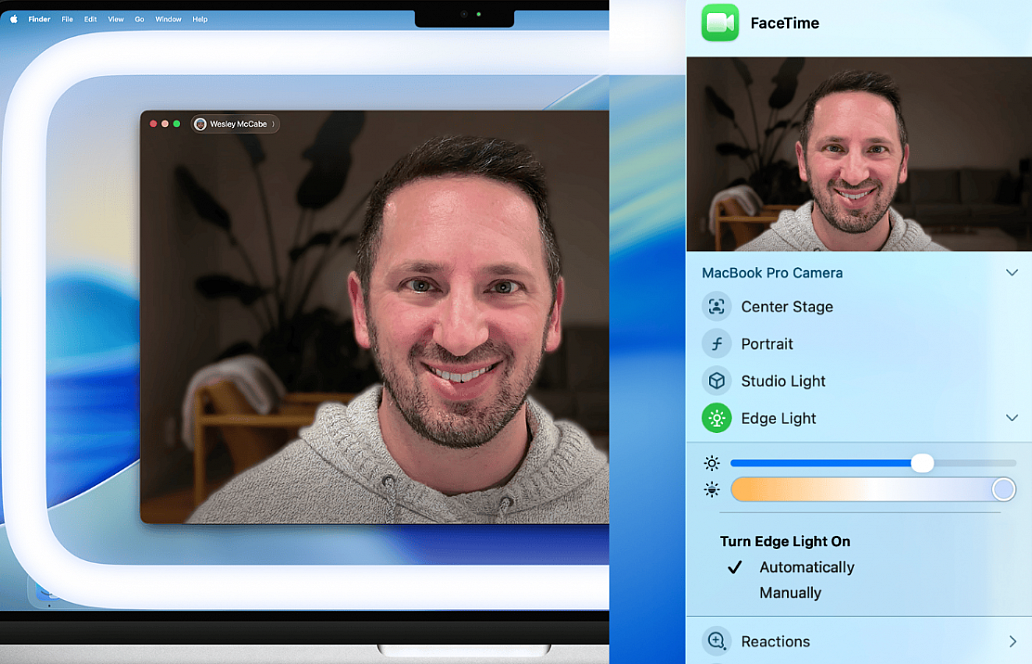
Unlike the iPhone’s front camera, the built-in webcam on Mac isn’t of very high quality. And things take a turn for the worse if you’re in a poorly lit room. To help address this problem, macOS 26.2 adds a handy Edge Light feature that transforms the computer display into a decently bright light source.
The Edge Light video effect provides a pleasing fill light to evenly illuminate your face in low-light conditions — like a virtual ring light. And to ensure that you always have access to your content, the effect automatically recedes from the area around your mouse pointer.
From the Video menu that appears in the menu bar when a video call is in progress, choose Edge Light to turn the effect on or off. If using your computer’s built-in camera, the effect appears on your built-in display. If using Continuity Camera (https://support.apple.com/en-us/102546) or other external camera, the effect appears on your primary display.
When Edge Light is turned on, click the arrow next to Edge Light in the menu to reveal additional controls:
• A brightness slider to adjust illumination by changing the width of the effect
• A color temperature slider to make the effect more or less warm. Warmer color temperatures show more yellow and less blue
• A setting to enable Edge Light to turn on automatically when you start a video call and the ambient light is low
Edge Light works best in low-light conditions, such as dim indoor lighting at night. You can combine it with any of the other effects.