Install large Mac apps on an external disk
Posted in
Learn how to set your Mac to offload large macOS apps and games directly onto an external flash drive, SSD, or hard disk if internal storage is limited.
Did you know that you can install App Store apps larger than 1 GB directly onto an external drive? This feature is a much-needed, especially since Apple sells MacBook Neo with just 256 GB of base storage.
To install Mac apps and games on an external storage device:
• Connect the external storage device to your Mac
• Make sure the disk is in Apple’s APFS format
If it isn’t, you can control-click or right-click on the drive name on the desktop and choose Erase Disk > APFS (Apple File System) > Erase. Note that formatting deletes everything from the disk, so be sure to back up important files before proceeding. APFS drives have also limited usability on non-Apple platforms like Windows PC and Android.
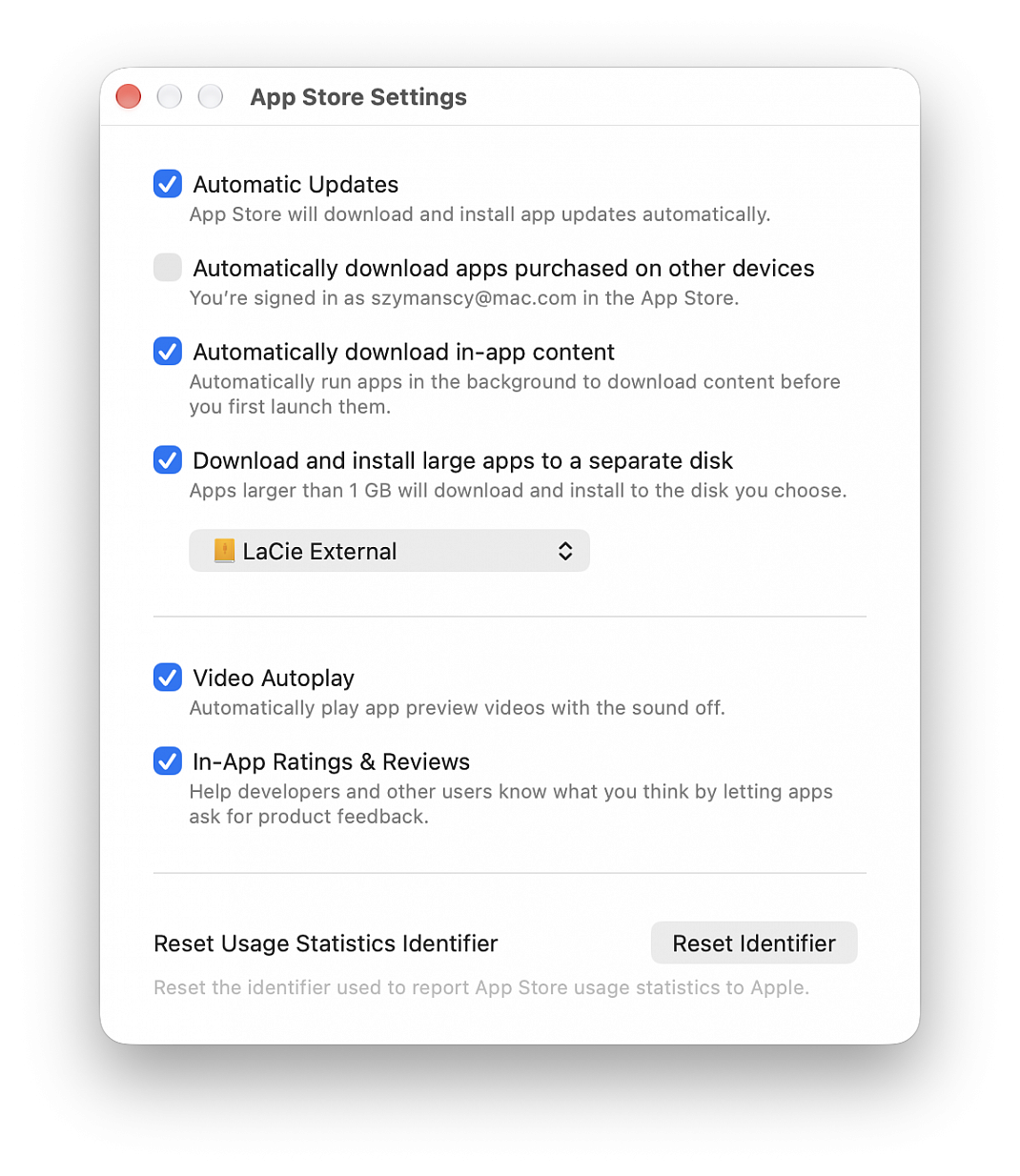
• With the external drive formatted to APFS and connected to your Mac, open the App Store and click App Store > Settings from the top menu bar
• Check the box for “Download and install large apps to a separate disk.”, after that, click the drop-down menu and select the external drive
After instructing the App Store to download its larger files to the chosen external storage device, locate an app or game that requires more than 1GB of space and click the Get, download arrow button. Mac apps bigger than 1GB include Microsoft Word (1.3 GB), Adobe Lightroom (1.6 GB), iMovie (3.5 GB), Civilization VI (15.4 GB), Tomb Raider (12.3 GB), etc. These apps will now install directly on the chosen disk.