Save a slideshow as a video
Posted in
Apple Photos app lets you select a bunch of photos & videos and play them as a slideshow with music, so you can view them comfortably like a movie. The slideshow is customizable with music, transition effects, and a custom duration for each image. If the video looks nice, you may want to save it as a video file.
Follow these steps to export a slideshow as a video movie:
• Open the Photos app and go to the Library section or an album
• Hold the Command key and select multiple images (or press Command + A to select them all)
• Click File > Play Slideshow from the top menu bar
• Click Customize to fine-tune the transition, duration, and music
• Click File > Export > Export Memory Video from the top menu bar
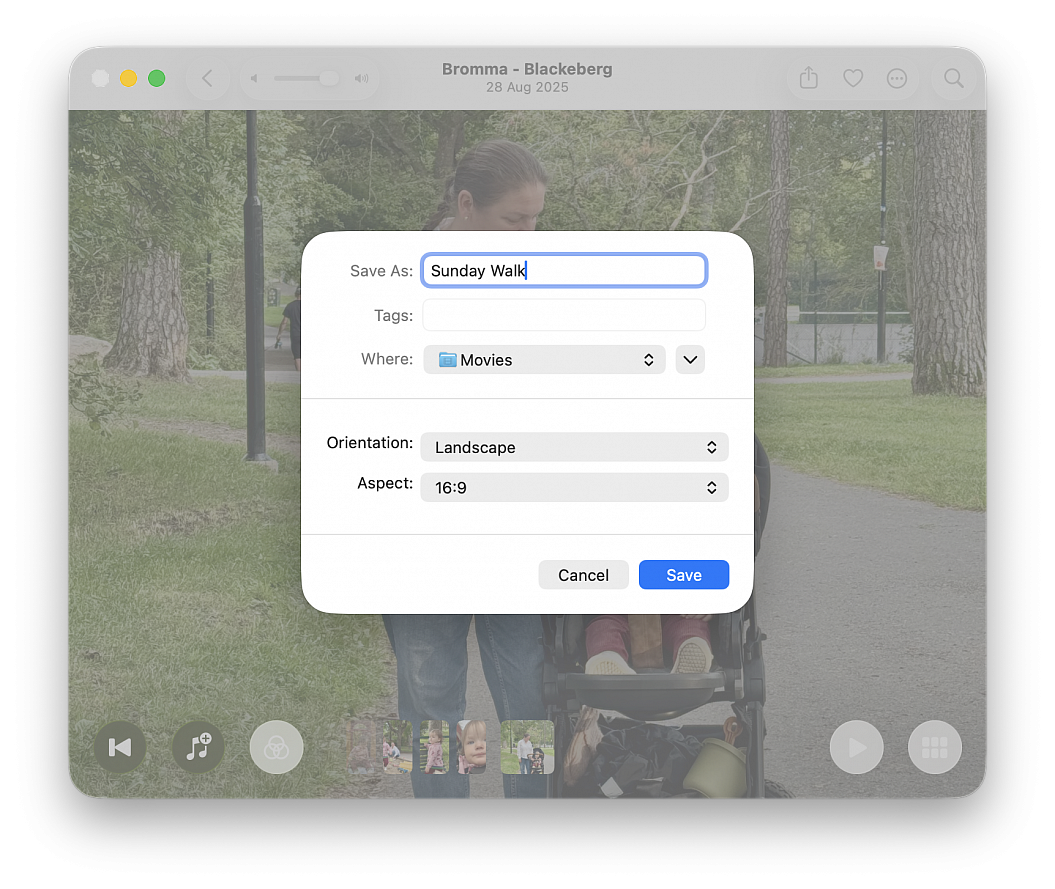
• Rename the video file, select a location, adjust the orientation and aspect ratio if needed, and click Save
The photo slideshow will be exported as an MOV file, which you can watch in the built-in Apple QuickTime app or a third-party app.