Prevent your Mac from reopening apps and windows from the last session
Posted in
Learn how to stop a Mac from automatically opening the apps, windows, and tabs from your last session after restarting, powering on or logging into your macOS user account.
If you don’t like seeing apps from previous session open automatically every time you power on or restart your Mac, here are some tips to prevent this from happening.
Untick the “Reopen windows when logging back in” box
After choosing the Restart, Shut Down, or Log Out option in the Apple menu, your Mac displays a confirmation dialog with Cancel and Restart buttons and a small tick box labeled “Reopen windows when logging back in.” Ticking this box tells macOS to automatically launch all apps that remained open when you last shut down your Mac or switched to another user. To stop this from happening, untick this box.
Hold the Shift key while opening the app
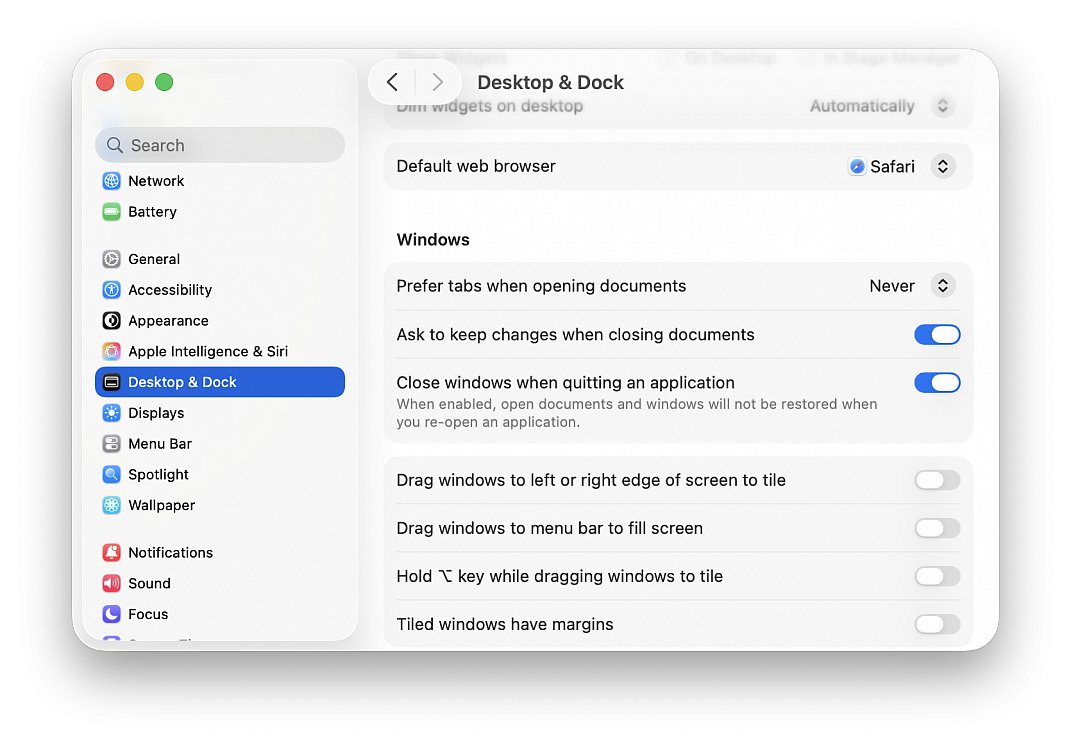
If you have multiple documents open in an app like Pages, then quit and re-open the app, it will restore documents from the previous session. This is a very convenient feature until it becomes annoying. Thankfully, you can simply hold the Shift key when opening an app to prevent it from re-opening any documents or windows from the previous session. You can also stop this behavior permanently by following the steps below:
• Open System Settings and click Desktop & Dock in the sidebar
• Turn on “Close windows when quitting an application” on the right side
Stop Safari from reopening windows and tabs from the previous session
Safari automatically reopen windows and tabs from your previous session, so you can pick up right where you left off. You may want to turn off this feature to always start with a clean slate:
• Be sure “Close windows when quitting an application” is turned on in System Settings > Desktop & Dock
• Open the Safari browser and click Safari > Settings from the top menu bar
• Select the General tab, click the menu next to “Safari opens with,” and select an option other than “All windows from last session” or “All non-private windows from last session”
Quit all apps before restart or shutdown
As an alternative, close all open apps before shutting down your Mac so there’s nothing to reopen from the previous session following a restart.