Prepare for macOS 27 Golden Gate
Posted in
macOS 27 has been released and whether you’re jumping in immediately, or waiting a bit, you might want to take a few moments to prepare your Mac for this major system software upgrade.
The big things to do are to check for system compatibility of your Mac, update your apps, make sure you have enough free storage available, and to backup your Mac. Once you’ve got those covered, you can update whenever you’d like.
• Hardware Compatibility
macOS 27 Golden Gate has a pretty broad range of hardware support, but it does drop support for some Macs. The big dividing line is chip architecture. It will run on any Apple Silicon Mac but will NOT run on any Intel Mac.
If you aren’t sure what your Mac is, you can go to the Apple menu and choose “About This Mac”. Look next to “Chip” and if you see anything like Apple M1, M2, M3, M4, Apple M5, M6, A18, you have an Apple Silicon Mac. If you see anything related to Intel or Core i5, Core i7, etc, the Mac will not be compatible.
• Free Storage
Make sure you have sufficient free storage available to be able to download and install the MacOS 27 Golden Gate update. For this, you’ll need at least 30 GB of free space on your drive to install and upgrade successfully to MacOS 27.
Launch Cocktail and perform essential system maintenance. You can also check your storage, and where to free things up by going to Apple menu > System Settings > General > Storage.
• Update Your Apps
App developers have been updating their apps to be compatible with macOS 27, so updating your apps is a good idea. Go to the App Store app, click on your Apple ID / name, then choose “Updates”, select to “Update All”.
This covers all App Store apps. Remember that if you have apps obtained directly from a developer, you will need to update those independently, often from the developer or within the app itself. Cocktail (Golden Gate Edition) is available for download from our site.
• Backup the Mac
The most important step: backup your Mac! Backing up your Mac insures that you can preserve and restore all of your data if something goes wrong, and it even allows you to easily downgrade if you decide MacOS 27 is not for you. Do not skip this step, it’s really important.
If you have not done so yet, set up and use Time Machine on Mac for backups. You will need an external hard drive for that purpose. Connect the Time Machine backup disk to the Mac, pull down the Time Machine menu item and choose “Back Up Now” to instantly start a backup of the Mac to the Time Machine disk and let the backup complete, it may take a while.
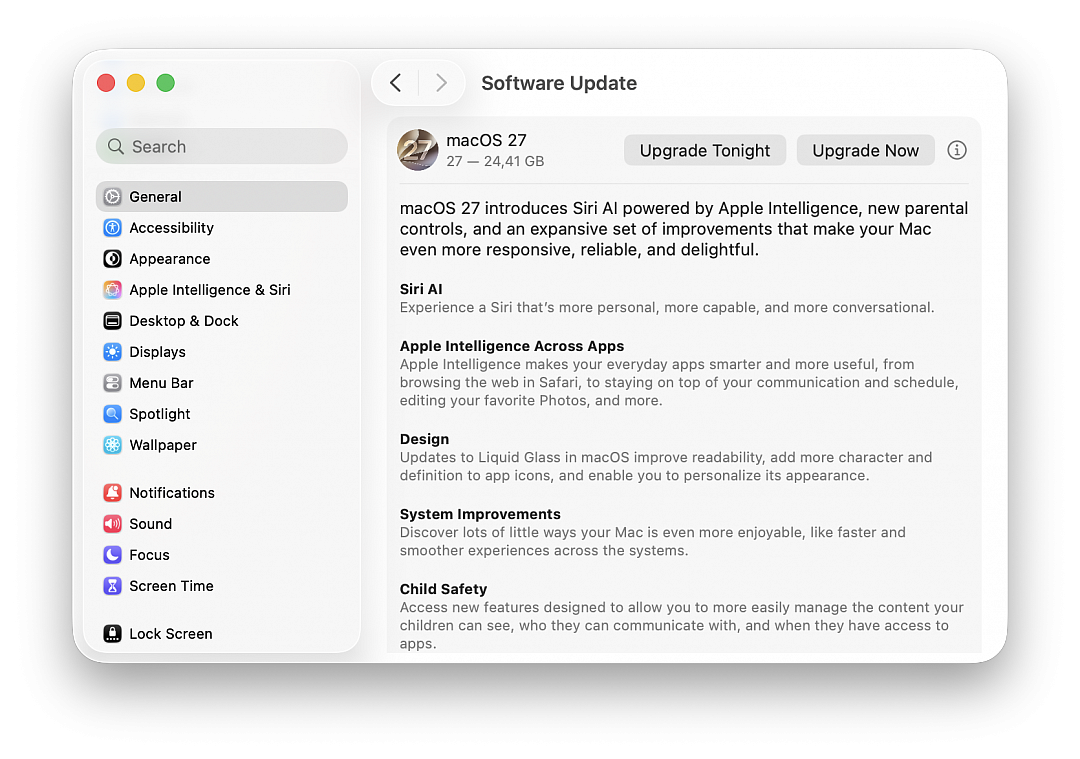
You’re now ready to install macOS 27 Golden Gate! From Apple menu, go to System Settings > General > Software Update > Upgrade Now for macOS 27. Upgrading to macOS 27 Golden Gate from Software Update is by far the simplest approach. It will install like any other system update, and reboot your Mac to finish.
Some Mac users wait for the first or second point release update to install a major new operating system version. This is reasonable as well, particularly if you’re waiting for some critical app compatibility. With all that said, if you’re currently running macOS Tahoe 26, then you will likely find macOS 27 Golden Gate to be an upgrade with better performance, and resolutions to frustrating issues with Tahoe including Spotlight not consistently working – that has been resolved in macOS 27.