Personalize folder icons with color, emoji, or symbol
Posted in
Mac’s operating system has allowed using a picture as the folder icon for decades. Plus, you can change the folder background to a different color or image. macOS 26 Tahoe takes things further by introducing additional customization options tailored to the folder icon.
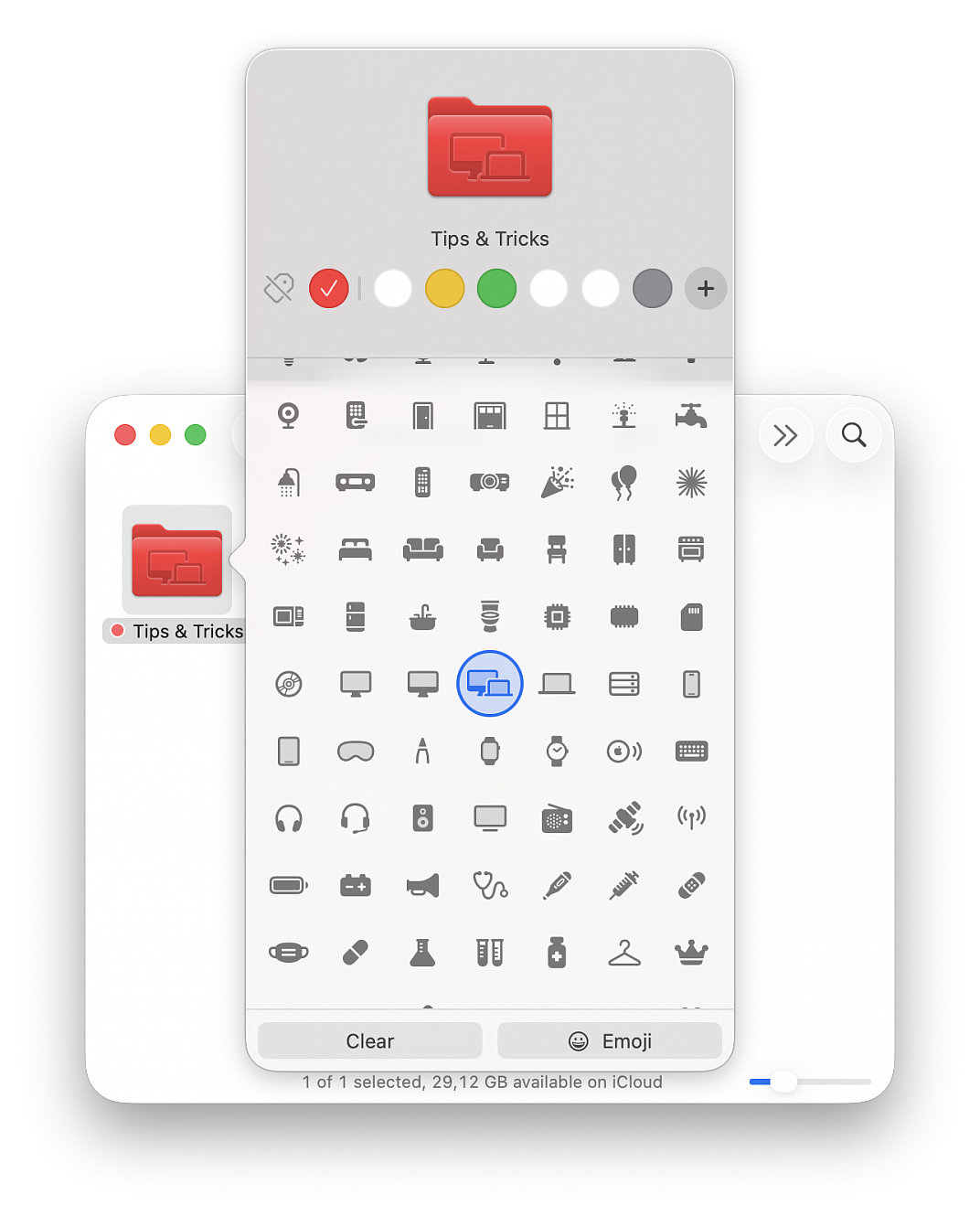
You can now personalize your folders with popular icons (symbols) or emojis. So, if you’ve a folder where you keep just your college PDFs and Word documents, you can add a study emoji to it. In addition to using icons and emojis, macOS Tahoe also lets you change the folder icon color. Therefore, instead of sticking with the familiar blue folder icons, you can now change them to red, orange, yellow, green, gray, purple, blue, or something else.
Add an icon or emoji to a folder
• Right-click or Control-click over a Finder folder and select Customize Folder from the menu
• Browse through the stock icons and glyphs across categories such as People, Animals & Nature, Food & Drinks, Activity, Travel & Places, Objects, and Symbols to select the one you want to use (you can also click Emoji and pick one from there, or use the search field to find the right one)
• Click anywhere outside the icon picker to save your changes and exit the customization screen
Change the color of a folder icon
Unlike the above-mentioned icon feature, which is standalone, the folder color change is linked to the old tags feature. Earlier, when you added a tag to a folder, it would just show a small colored dot before the folder name. However, selecting a tag now applies that color to the entire folder icon. Right-click over a folder in Finder or Desktop and select one of the tags from the menu. To see all tags, go to the Customize Folder section and then click one of the colored dots at the top.
Change the color of all your folders
If you don’t want to change folder colors individually or add tags to do so, you can pick a desired color for all your Finder folders. Just note that doing so won’t change the color of any folders that you have customized on a per-case basis using the above-mentioned ‘Tags’ feature.
• Open System Settings from Apple menu
• Select Appearance from the left sidebar
• Click Folder color and select a suggested color, or click Custom Color to make a pick from millions of options
Remove the folder icon or revert to the default blue color
Right-click or Control-click over a folder on your Mac and select Customize Folder from the menu. Then, click Clear to remove the added symbol or emoji. To return to the original blue folder icon, click the current color or hit the tag icon to remove all tags.