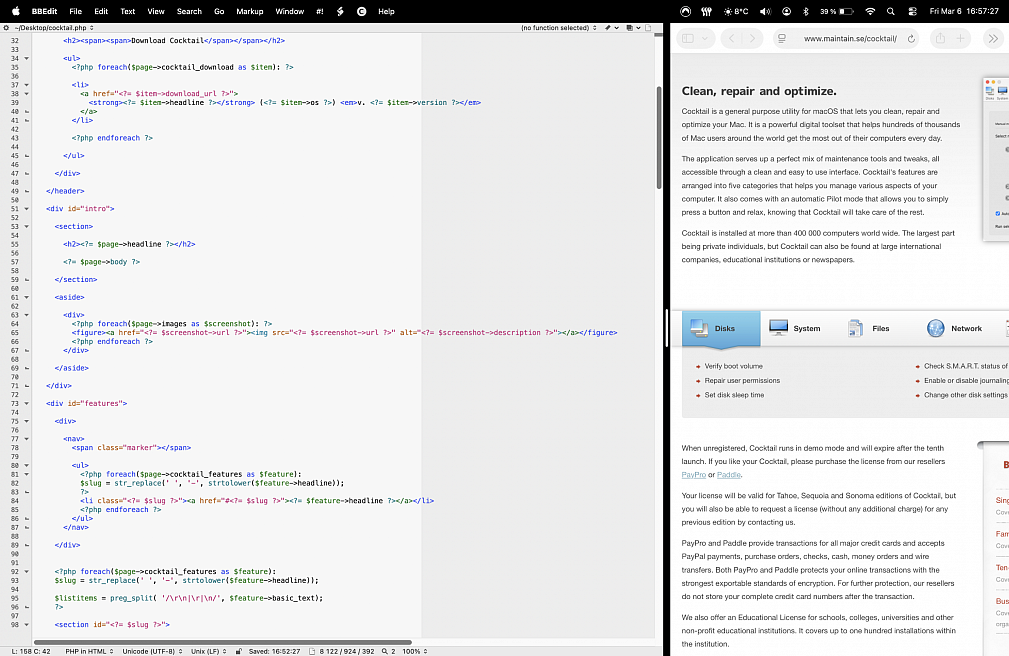
Full screen Split View on macOS Tahoe
Posted in
Split View is a useful feature in macOS that lets you split the screen between two different applications or windows, in complete full screen mode. Split View is appreciated by many users who find it to boost productivity and focus, particularly if they already enjoy and appreciate full screen app mode on the Mac.
Split View is accessed slightly different with macOS Tahoe, unlike the original implementation releases, you now have to go into a sub menu to access it:
• Open whatever applications or windows you want to use
• Click and hold on the Green button in the title bar to bring up the window options
• Go to "Full Screen" submenu and choose “Left of Screen” or “Right of Screen”
• The opposite panel will now open into Expose where you can select another open app or window to split the screen with in Full Screen mode
You can resize either the left or right split view panel using the slider button in the middle of the screen. To exit Split Screen Mode in full screen, simply pull the cursor to the top of the screen and access the Green buttons again, or press/hold the Escape key.