Find extended Wi-Fi network details
Posted in
Did you know that you can quickly access information about your router, and check if your network is performing well? See your BSSID, signal-to-noise ratio, and even the transmit rate between your router and computer. All it takes is a press of a button and a click of your mouse/trackpad.
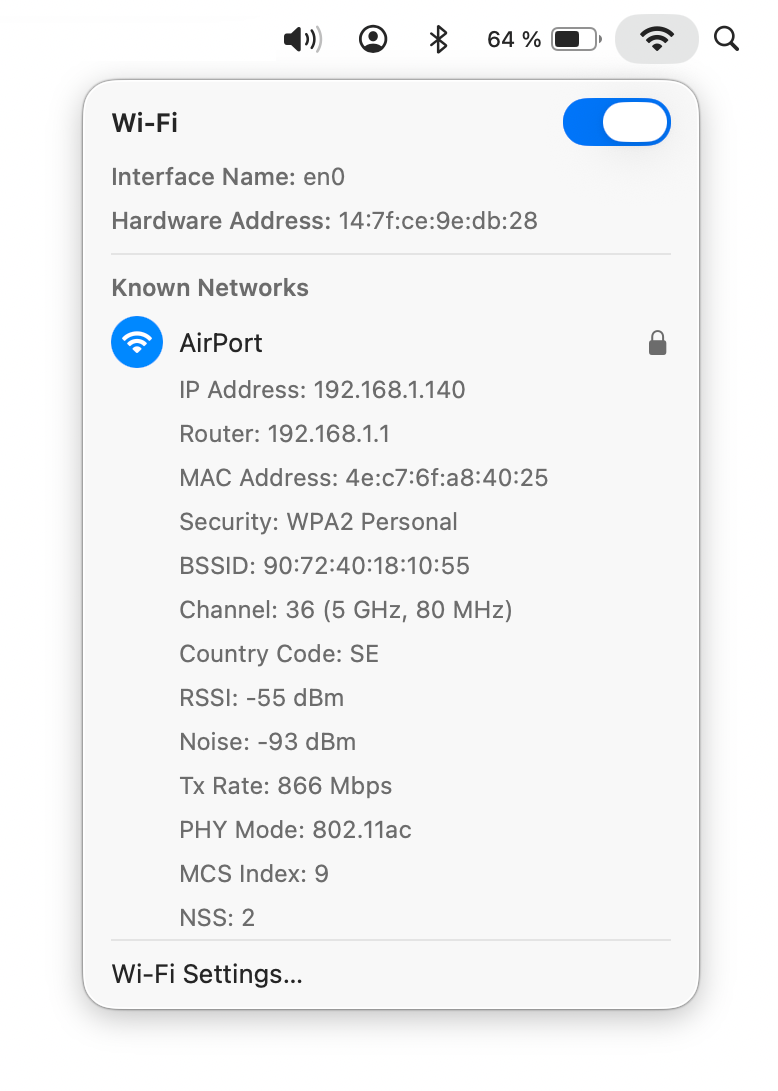
If you hold down the Option (alt) key and click the Wi-Fi icon in the menu bar, it will provide you with details about your router and the network you're using. The items in gray are all pieces of additional information seen only in this mode.
• IP Address: This is your computer's IP address.
• Router: Your router's IP address. You can type this into your browser to access your router's web interface.
• Security: Your router's security. Most routers on the market offer WPA2 Personal, and it keeps your network encrypted.
• BSSID: This is your router's MAC, or hardware address. It acts as an identifier for your router that lets it talk to other network-connected devices.
• Channel: This is your WLAN channel, and it determines which radio frequency the router uses to transmit information.
• RSSI: Received Signal Strength Indicator measures how well a device "hears" a signal from the router. It's useful for determining if you have enough signal to get a good wireless connection.
• Noise: This measures how much radio noise is interfering with the RSSI signal. Signal-to-noise ratio is a measure used in science and engineering that compares the level of a desired signal to the level of background noise. It is defined as the ratio of signal power to the noise power, often expressed in decibels.
• TX Rate: The transmit rate is the speed of the data that is transmitted between your router and your computer. Right now I have a speed of 450 Mbps.
• PHY Mode: This is the wireless protocol that the router uses, according to the IEEE 802.11 wireless standard.
• MCS Index: This number corresponds to the protocols uses to encode the radio signal.