Build Safari extensions in macOS 27
Posted in
Safari on Mac has supported extensions since version 5, which was released in 2010, but despite years of support, the Safari Extensions store is a lot more limited than the Chrome Web Store. To address this, Apple now lets you create your own extensions based on your needs, without compromising your privacy. You can simply describe what you want, and Apple Intelligence will likely build a working Safari extension just for you in a couple of minutes.
Just like extensions you download from the App Store, the ones you create will also be compatible with macOS, iOS, and iPadOS. Plus, they automatically sync via iCloud on all devices where you have signed in with the same Apple Account.
Create Safari extensions on Mac:
• Upgrade your Mac to macOS 27 Golden Gate and make sure new Siri (and by extension, Apple Intelligence) is set up
• Open Safari and visit a website
• Click the three-line menu icon on the left side of the address bar as shown in the screenshot below, and select Describe Extension
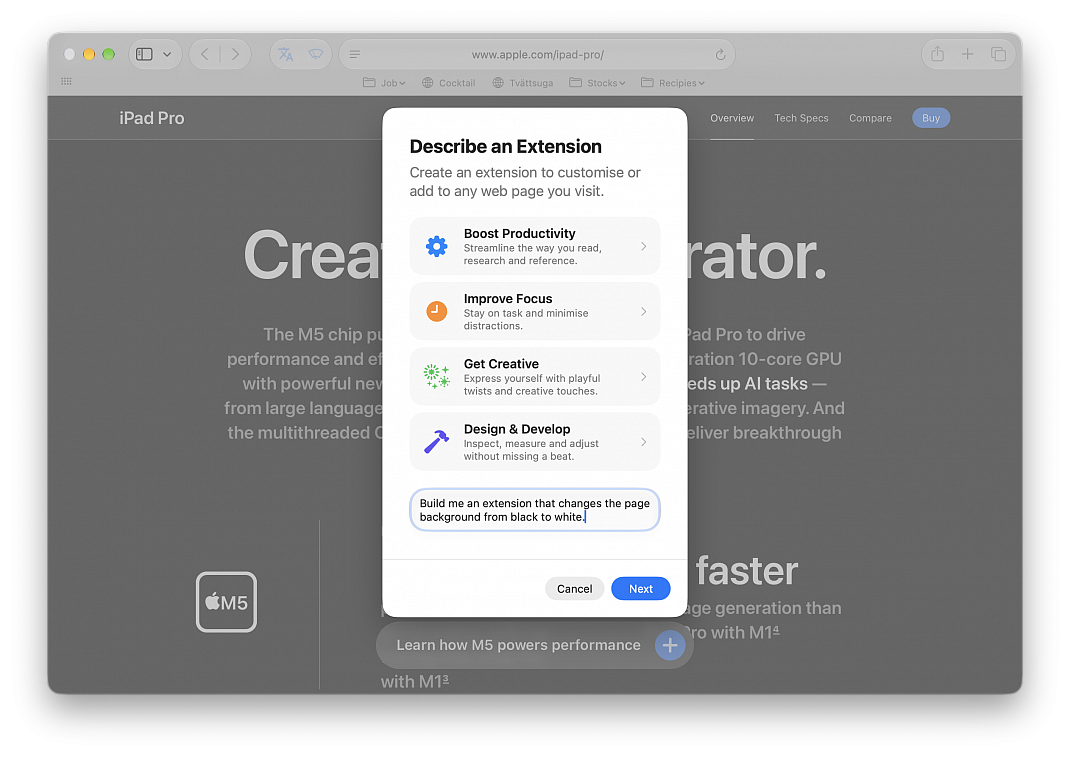
• Think of what you want the extension to do; what new feature or improvements you want to add to Safari, or pick a suggested idea from these categories: Boost Productivity, Improve Focus, Get Creative, and Design & Develop
For example, tell Apple Intelligence to build an extension that changes the page background from black to white. Describe that in the box in simple words:
"Build me an extension that changes the page background from black to white."
and click Next.
Safari will search if there is an existing extension on the App Store that already does what you want. In case there are none (which is the case in most cases), it will say ‘No App Store Results. Create an extension to get started.’ Click the Create button.
• Wait for Apple’s AI to build it; you’ll see a ‘Creating Extension…’ status in the upper left corner of the screen
• Once the extension is created, click the ‘Try’ button to give it a spin
• After clicking ‘Try,’ you’ll likely have to click the extension icon again at the top and allow it to run
• If the extension works as you asked, then there is nothing left to do, but if not, you can tweak it: click Edit or View and then describe the change
• Finally, click Save to update the extension
You can manage this extension (Mac and iOS) the same way you can other third-party ones.